
Five decisions in the order they have to be made, a licensing split that is easy to read backwards, and what two admin portals reported about the same tenant on the same afternoon.
Buying Copilot licenses is a procurement decision. Governing Copilot is a design decision, and it has an order. Assign the licenses first and the design decisions do not go away, they arrive later and under time pressure, and the question that surfaces them can be blunt: what stops a prompt from summarizing the payroll folder? The five decisions below are the ones to settle first, and the reason to start with the first one is a screen in the Microsoft 365 admin center that reads as more reassuring than it is.
Two portals, two answers
I opened the Copilot Control System in my lab tenant, at Microsoft 365 admin center > Copilot > Overview, then the Security tab. The Protection summary showed a green shield and the line "Policy running: Protect sensitive Microsoft 365 Copilot and Copilot Chat interactions." All Copilot interactions scanned. Sensitive info monitored for all users. Both items tagged "Protected by default."
The Recommendations panel on the same page reported "No policy detected." The protection summary beside it noted that preventing data leakage in Copilot interactions was currently enabled for only 0, flagged Recommended.
Same page. Same tenant. Same afternoon.
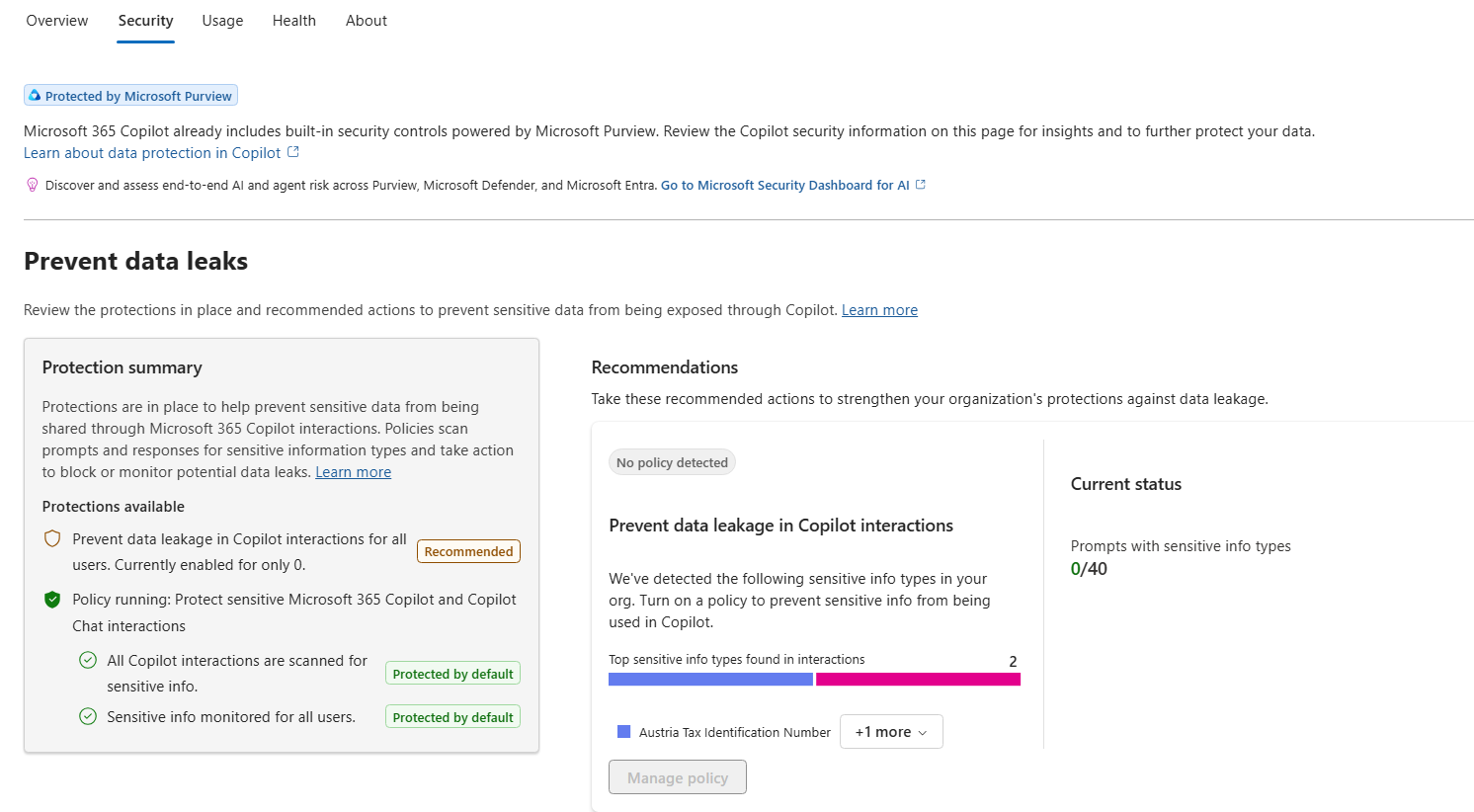
Figure 1. The Protection summary reports a running policy and two items protected by default. The Recommendations panel on the same page reports no policy detected.
Purview settles it. Under Data Loss Prevention > Policies, the card header read "Policy not yet created," and the body text beneath it stated that the default DLP policy is currently in simulation mode and can be turned on to restrict Copilot from processing sensitive prompts or performing web searches. The card carries both statements at once: the header reports that no policy exists, and the body describes what that policy is currently doing. Its prompt risk summary showed 0 of 40 sensitive Copilot prompts and 0 of 40 currently being blocked. Four unrelated DLP policies in the same tenant sat in the same list showing Mode: On.
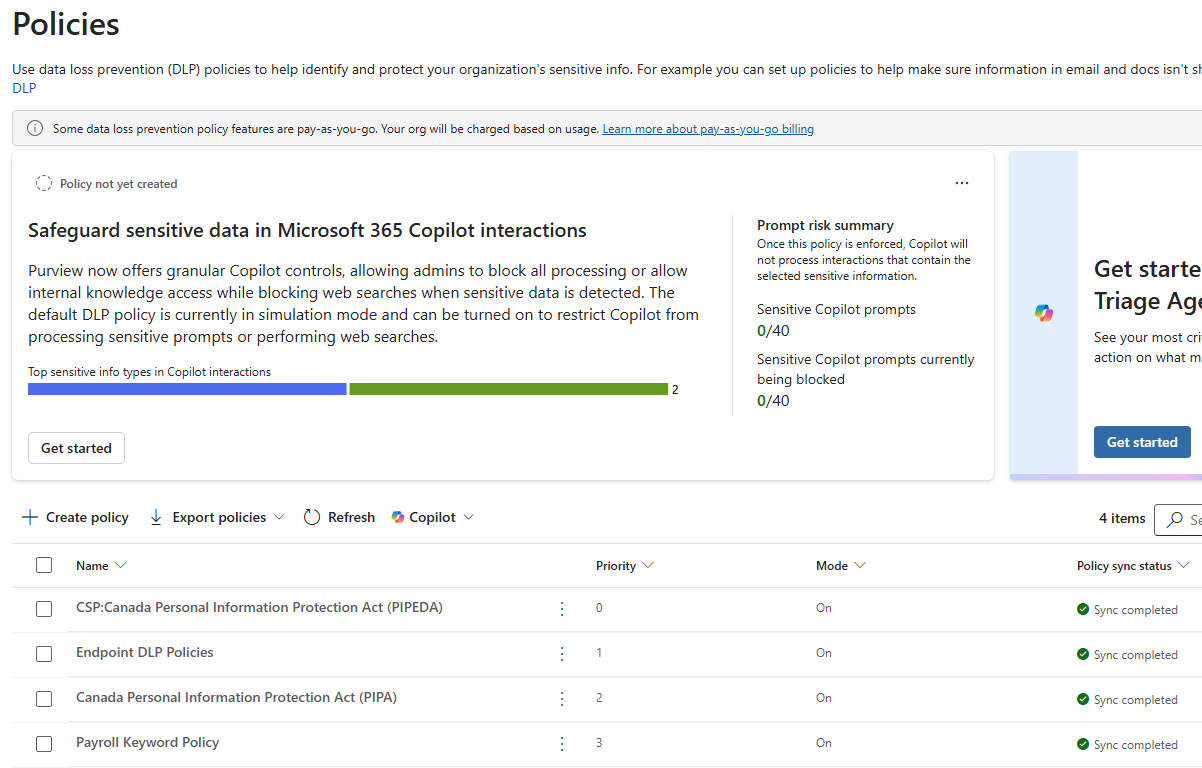
Figure 2. The same claim, seen from Purview. The card header reports that no policy has been created, the body text describes what that policy is currently doing, and the four policies in the list are tenant-created and enforcing.
The simulation default is documented, and it is deliberate. Microsoft Learn describes the default policy, named Default DLP policy - Protect sensitive M365 Copilot interactions, as initially configured to run in simulation mode with policy tips shown, and states that blocking prompt processing requires changing the policy state to enforce mode. That is Learn describing how the policy ships. My tenant did not have it. The Purview policy list held four policies, every one of them created by me and every one showing Mode: On, with no Copilot default policy object anywhere in the list. Nothing is broken here. The consequence is the practical one: an admin who reads "Protected by default" in the Microsoft 365 admin center and opens Purview to review the policy behind that claim finds nothing to open, nothing to scope, and nothing to move to enforce.
What is not documented is that the two admin surfaces describe that state in opposite language. An admin who checks the Microsoft 365 admin center and reads "Protected by default" has been told about a policy that is not in the tenant. This is one tenant, mine, observed in July 2026. Open both views in yours before deciding whether this item is closed. It takes two minutes and it is the cheapest thing on the list.
Why the licenses-first order fails
Licenses first, then a pilot group, then the question of what a prompt can reach and what stops it, then Purview. Nothing in the product stops that ordering, and it has its own logic: a license has a renewal date attached and a permissions review does not. Each step in it creates the pressure that makes the next one rushed.
The order that holds up:
1. Oversharing in SharePoint. Nothing downstream is meaningful while permissions are wrong.
2. Sensitivity label taxonomy. Labels are the condition every label-based control selects from.
3. DLP for Copilot interactions. Only worth configuring once 1 and 2 exist.
4. AI agent governance. A separate control surface with its own licensing and its own gaps.
5. Licenses. Last.
Diagram 1. Each decision is a prerequisite for the next one being meaningful.
Licenses come last for a practical reason. The first four decisions determine how many people you can safely turn Copilot on for in the first wave, and that number is the license count.
Oversharing first, and the stopgap that is closing
Copilot does not grant access. Microsoft Learn states it plainly on the DLP location page: all Microsoft 365 Copilot prompts run in the security context of the user who initiates the prompt, so a user must already have permission to the content of an item before it can appear in a response.
Which means Copilot creates no new exposure. It surfaces exposure that permissions already allowed. A site shared with "Everyone except external users" is readable by everyone that scope covers. Finding a document on it previously required knowing the file name. Now it requires asking a question in plain English.
The control available for buying time while that work happens is being withdrawn on a published schedule. Restricted SharePoint Search, the tenant-wide allow list that limited organization-wide search and Copilot grounding to a curated set of sites, is retiring. Per Message Center MC1395311, dated June 18, 2026: new enablement is blocked from July 31, 2026, full retirement lands January 31, 2027 with no extensions or exceptions, and the PowerShell cmdlets retire February 28, 2027.
The sentence an IT director should act on is the one about migration. Microsoft will not move Restricted SharePoint Search configurations to the replacement automatically. A tenant that takes no action can find previously restricted content discoverable again once retirement lands, without anyone changing a permission or a policy.
The replacement is Restricted Content Discovery, and the licensing question is smaller than it first looks. Restricted SharePoint Search requires at least one Microsoft 365 Copilot license. Restricted Content Discovery requires SharePoint Advanced Management, and a tenant with at least one Copilot license assigned already has SharePoint administrators receiving SAM capabilities to support the Copilot deployment. For a tenant with Copilot licenses assigned, the migration is a work cost, with no new line on the invoice. The add-on question arises for a tenant running Restricted SharePoint Search without Copilot licenses, or for SAM features outside the Copilot entitlement such as restricted site creation, which need the SharePoint Advanced Management Plan 1 add-on.
The model inverts as well, and this is the part that changes how the work is planned. Restricted SharePoint Search was one tenant-wide allow list capped at 100 sites, so the job was naming everything Copilot was permitted to see. Restricted Content Discovery is a per-site restriction, so the job becomes naming the sites it is not. In a tenant with a few thousand sites those are very different exercises, and the second one only works if somebody already knows which sites are the risky ones.
Neither is a security control. The Restricted SharePoint Search documentation says so directly: it is not a security boundary and it does not change any permissions on SharePoint sites. Restricted Content Discovery governs discovery in the same way. Content stays reachable by anyone holding permission and a direct link, which is why both buy time and fix nothing.
The fix is permission remediation, and it has the longest lead time of anything in this article: site-level sharing review, organization-wide link cleanup, orphaned sites with no owner, and the libraries that were opened up once for a project and never closed. Purview gives you somewhere to start. Under DSPM > Discover > Data risk assessments, a default assessment runs weekly against the top 100 SharePoint sites by usage and surfaces where sensitive content sits behind broad access. Read that before deciding which sites go on the restriction list, because usage is a better predictor of what Copilot will reach than org-chart intuition.
Labels as the prerequisite, not the polish
The control that keeps specific content out of Copilot grounding is a DLP rule using the Content contains > Sensitivity labels condition. A tenant with no published labels has nothing to select in that condition, so the control has nothing to act on.
Microsoft's own worked example on the DLP location page uses a five-label taxonomy: Highly Confidential, Confidential, Internal, Public, Personal. That shape is a reasonable starting point precisely because it is small enough to publish and explain.
Two coverage details on that page are worth reading before anyone promises the label control covers the mailbox. The label rule supports file items, both stored and actively open, and emails sent on or after January 1, 2025. Calendar invites are not supported. Mail older than that date is outside the condition, which is a real boundary in a tenant with ten years of Exchange history.
One more behaviour to know: in Word, Excel, and PowerPoint the policy is evaluated at file open. Apply a label mid-session and enforcement starts the next time the file is opened.
What DLP for Copilot covers, and five things it does not
The Microsoft 365 Copilot and Copilot Chat policy location lives only in the Custom policy template, and selecting it disables every other location in that policy. Treat that as a design constraint. Copilot DLP is its own policy object, so it gets its own review, its own scoping, and its own change record, separate from whatever governs Exchange and SharePoint.
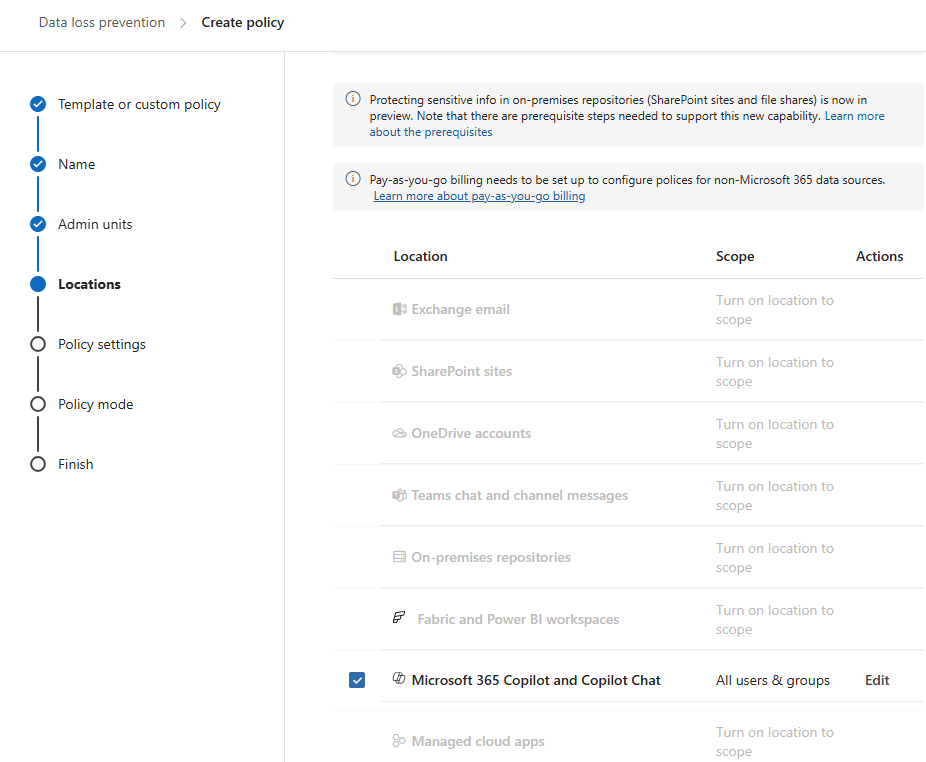
Figure 3. Selecting the Copilot location disables every other location in the policy, which is why Copilot DLP is always a policy of its own.
The location carries four controls. Their availability and their licensing differ from each other, so the useful way to write this down is per control with a date attached.
| Control | What it does | Licensing | State on the June 11, 2026 Learn revision |
|---|---|---|---|
| Block sensitive prompts | Copilot returns no response when the typed prompt contains chosen SITs, and the prompt is not used for internal or web search | All users of Microsoft 365 Copilot and Copilot Chat, E1 and E3 included | Preview, rolling out to tenants |
| Block sensitive files and emails | Excludes items carrying chosen sensitivity labels from response summarization | E5, or the Purview add-on for Business Premium | Generally available |
| Block SITs in web search | Blocks external web search as a grounding source for that prompt, internal sources still used | See note below | Listed without a preview tag on the current en-us page |
| Block external email as grounding data | Excludes email from outside your accepted domains from grounding, summarization, and citation | See note below | Preview |
Worth checking that against your own tenant before planning around it. In mine, in July 2026, the policy wizard offered one action, Restrict Copilot from processing content, with a single activity under it called Accessing knowledge sources. The list was the same whether the condition was a sensitive information type or a sensitivity label, so it is not condition-driven. Whether that is rollout timing or a property of the license tier is not something one tenant can tell you.
The Microsoft security blog announcement described DLP for Copilot prompts as entering general availability, while the Learn page still heads that section "Block sensitive information types in prompts (preview)" as of the June 11, 2026 revision. Microsoft is also rolling a default policy for that control out to tenants with Copilot and Copilot Chat access, which is what the first section of this article is about, so the table row above reads Preview while the same control ships as a default policy elsewhere. Write the state per control, date the statement, and confirm in your own tenant, because a flat GA claim in either direction will be wrong for somebody.
The gaps matter more than the controls, because each one is a claim that sounds safe to make in a governance review and is not true.
DLP does not scan the contents of files uploaded directly into a prompt. Only the text typed into the prompt is evaluated. An employee who cannot paste an account number can still attach the spreadsheet it came from.
The location does not support administrative units. A departmental pilot scoped that way is not available, so scoping happens through the users and groups selection instead.
Excluded items still appear in the citations of a response. The content is not used and Copilot does not access it, but the item name is visible, which is enough to tell a curious employee that the document exists and where it lives.
Policy updates take up to four hours to appear in the Copilot experience. That is the number to quote when someone tests a change six minutes after saving it and reports the control does not work.
Labels on attachments are evaluated against the email carrying them. If an email does not have a sensitivity label matching the policy but its attachment does, DLP does not block that attachment from Copilot. Closing that gap means the covering email has to carry a matching label as well, which is a second thing to get right on every send rather than a property of the document itself.
One configuration constraint sits alongside those. Sensitive information type conditions and sensitivity label conditions cannot be combined in the same rule. Build one rule for each inside the same policy.
Diagram 2. What the Copilot location evaluates, what it does not, and the two behaviours worth knowing at the boundary.
Simulation mode, DLP alerts, and DLP notifications are all supported on this location, which is what makes the staged approach possible: run the policy in simulation, read what it catches for a couple of weeks, then move it to enforce with a SIT set you can defend.
The licensing split, and why E3 tenants should still run the evaluation
Per the Microsoft Purview service description, DLP to safeguard Copilot prompts is available to all users of Microsoft 365 Copilot and Copilot Chat. Restricting Copilot from processing labeled files and emails is listed for the E5-class plans, and endpoint DLP covering generative AI websites requires Microsoft 365 E5 or the Purview add-on for Business Premium.
So an E3 tenant is not shut out of Copilot data protection. It is limited to prompt-level controls built on sensitive information types. That is a narrower posture than an E5 tenant gets, and it is not nothing: the input path is the path an employee uses when they paste a customer record into a prompt. Assuming the whole thing is E5-gated and skipping the evaluation is the more expensive mistake.
Purview also shows a banner noting that some DLP policy features are pay-as-you-go and that the organization is charged based on usage, which was visible in my lab tenant. Read it before assuming a control is covered by a plan you already own.
Two roles on the DLP location page do this work without Global Administrator: Microsoft Entra AI Admin, and Purview Data Security AI Admin. The second one can edit Copilot-related DLP policies and view AI content in Data Security Posture Management, and the page states it does not have access to read the prompts and responses of AI interactions. For a director being asked who can see what employees type into Copilot, that read boundary is the answer, and it is a documented one. Both are still privileged roles, so how they are protected is an identity decision rather than a Purview one.
The surface that boundary applies to is Activity explorer, reached from DSPM > Discover. Its AI activities tab is where prompts and responses land, along with whether they contained sensitive information, when a DLP rule matched during an interaction, and when a user browsed to a generative AI site. That is where an investigation starts and where a simulation-mode policy proves it is detecting anything at all. Pairing the role with the surface answers the obvious objection: somebody has to be able to check that the controls fire, and that person does not have to be somebody who can read what employees typed.
AI agent governance as a separate track
Prompt-level DLP and AI agent governance are two different problems, and the second one has more moving parts because anyone with a license can create an AI agent.
Microsoft Agent 365 became generally available for commercial customers on May 1, 2026 and is licensed per user. For enterprise users, the licensing prerequisite is Microsoft 365 E5, or Microsoft 365 E3 (or Office 365 E3 plus EMS E3) with both Microsoft Defender Suite and Microsoft Purview Suite. Agent 365 is available as a standalone subscription for $15 per user per month and is included with Microsoft 365 E7. It is not included with Microsoft 365 E3, Microsoft 365 E5, or the standalone Microsoft Copilot add-on.
The licensing rule is scoped to a subset of agents and reaches beyond the people who build them. Per the Microsoft licensing FAQ, agents using Agent 365 premium capabilities require a license for every user who interacts with, manages, or sponsors them, and an organization whose unlicensed users benefit from those capabilities may be out of compliance. Agents that do not use those capabilities sit outside the rule. Microsoft then states that this guidance is difficult to operationalize today, because there is limited visibility into user-level agent interactions at the point where policy is configured. A vendor writing down that its own licensing rule is hard to comply with is worth quoting to whoever signs the purchase order, and it is a reason to scope AI agent access narrowly at the start, when the population using an agent is still a list of names.
Without Agent 365, day-to-day management of AI agents in Copilot happens in the Copilot Control System inside the Microsoft 365 admin center. Three settings there have the most immediate effect: user access, allowed agent types, and sharing. Set those before the first AI agent is published rather than after, because each one is easier to apply than to retract.
An AI agent built in Agent Builder can be submitted to the organizational catalog, an admin reviews the submission in the Microsoft 365 admin center, and an approved submission is published under the Built by your org section of the Agent Store. That review step is the gate.
The gap to know about: Researcher and Analyst are part of the core Copilot chat experience and, per Learn, do not fall under any agent-related settings, even though they abide by the agent-related governance capabilities. Both sit outside the control surface that governs the rest of the AI agent estate.
The DLP location page states that prompt protection and the label control extend to prebuilt agents in Microsoft 365 Copilot and Copilot Chat. Prebuilt is the word on the page. A second page, Use Microsoft Purview to manage data security and compliance for Microsoft Copilot Studio, revised May 1, 2026, states the boundary for custom agents: when the knowledge source is SharePoint, a DLP policy scoped to the Microsoft 365 Copilot location can restrict agents built in Copilot Studio for Microsoft Teams, SharePoint, and Microsoft 365 Copilot from processing sensitive content based on a specified sensitivity label. Three conditions and one control. Change the knowledge source, publish the agent to a channel outside that list, or reach for a sensitive information type instead of a label, and the coverage is gone.
For a worked example of what a scoped AI agent looks like when the access model is decided first, the IT Knowledge Agent build uses a single Entra ID security group as the entire access model and delegated authentication, so retrieval respects the SharePoint permissions that already exist. That is the same principle as the first decision in this article, applied at the level of one AI agent instead of the whole tenant.
The baseline as a decision table
Five decisions, in order, each with the question that closes it.
| # | Decision | The question to settle | What it gates |
|---|---|---|---|
| 1 | SharePoint oversharing | Which sites and links would a plain-English question expose that nobody has ever opened? | Whether any downstream control is worth configuring |
| 2 | Label taxonomy | Are labels published, applied, and small enough that people use them correctly? | Every label-based DLP condition |
| 3 | DLP for Copilot | Which SITs block a prompt, and does a Copilot policy exist in the list at all? | Enforcement, as opposed to detection |
| 4 | AI agent governance | Who can publish, who can share, and which agent types are allowed? | How fast the AI agent estate grows before anyone reviews it |
| 5 | Licenses | How many people can be turned on safely given the answers above? | The size of wave one |
The order is the argument. Decisions one and two are mostly time rather than money, and time is the thing a purchase order cannot buy. Decision one stays a work cost for any tenant deploying Copilot, because the licensing for the replacement restriction arrives with the Copilot licenses already being bought, and no add-on anybody could purchase reviews permissions on their behalf. If you take one thing from this and do it today, open the Copilot Control System Security tab and the Purview DLP policy list side by side and see whether they agree about your tenant. Mine did not. The admin center reported a policy that was not there.
Questions about which path fits your environment are welcome. Please feel free to reach out.
