
How to configure the Temporary Access Pass and passkey policies in Entra ID, hand a new user their first credential, and verify the first passwordless sign-in in the logs.
Every passwordless rollout hits the same bootstrap problem. A new user has no MFA methods, no device, and no way to prove who they are to the tenant, so the service desk hands them a password. That password then outlives its purpose: it sits in the onboarding script, the welcome email, and the user’s memory long after a passkey takes over sign-in. Entra ID’s Temporary Access Pass (TAP) removes the password from day one entirely. This walkthrough covers the two authentication method policies to enable, the pass issuance flow, the user’s first sign-in through passkey registration and Windows device setup, and the verification that proves the account never used a password.
Prerequisites
An Entra ID tenant. Passkeys (FIDO2) require no extra license; both methods in this article are configured in the Authentication methods policy.
Roles, least privilege: Authentication Policy Administrator edits the Authentication methods policy. Authentication Administrator creates, deletes, and views a TAP for member users. Privileged Authentication Administrator is needed to issue a TAP to admin accounts. None of these roles can create a TAP for their own account.
The Conditional Access enforcement in step 6 requires Microsoft Entra ID P1.
A test user and something to hold a passkey: a FIDO2 security key, or a device that can store one.
Step 1: Enable the Temporary Access Pass policy
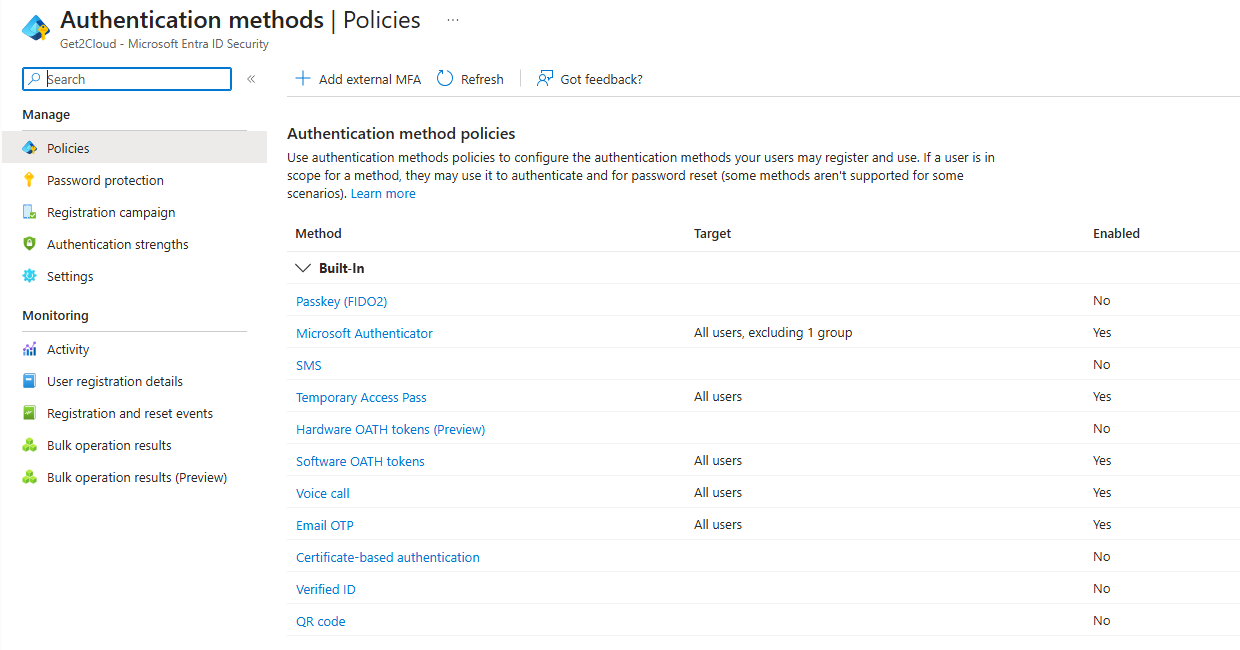
Figure 1. The starting state. Temporary Access Pass is already enabled and targeted in this tenant; Passkey (FIDO2) is not. Both live in the same Authentication methods policy, and neither does anything for a user until it is enabled and scoped to them.
Sign in to the Microsoft Entra admin center as at least an Authentication Policy Administrator and browse to Entra ID > Authentication methods > Policies. Select Temporary Access Pass, set it to Enable, and target the users or groups who should be able to sign in with one. Anyone can be issued a TAP, but only users inside this policy scope can use it to sign in. That gap produces confusing failures when the issuing admin and the policy owner are different people, so scope the policy before anyone starts issuing passes.
Select Configure to review the tenant-wide settings.
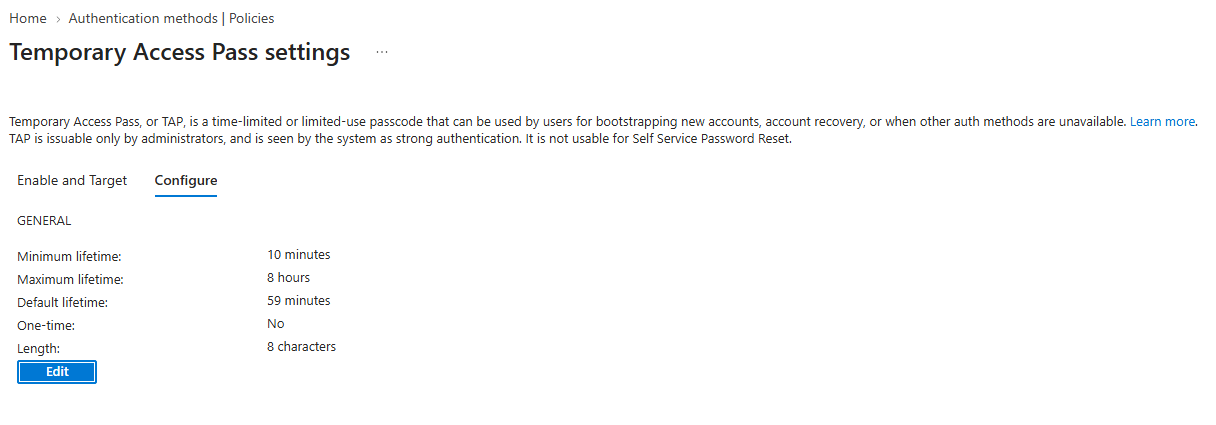
Figure 2. The Configure pane. One-time use changes the enrollment flow more than any other setting here.
| Setting | Default | Allowed values | What it controls |
|---|---|---|---|
| Minimum lifetime | 1 hour | 10 to 43,200 minutes (30 days) | The shortest validity an admin can set on an individual pass. |
| Maximum lifetime | 8 hours | 10 to 43,200 minutes (30 days) | The ceiling for any pass created in the tenant. |
| Default lifetime | 1 hour | 10 to 43,200 minutes (30 days) | Applied when the issuing admin does not set a duration. |
| One-time use | False | True / False | When True, every pass created in the tenant is single use. |
| Length | 8 | 8 to 48 characters | Passcode length. |
The setting that shapes your onboarding flow is one-time use. A single-use TAP is the tighter credential, but it carries a documented constraint: when a user signs in with a one-time TAP to register a passwordless method, the registration must finish within 10 minutes of that sign-in. Device enrollment that runs long means issuing a second single-use pass for the Windows Hello for Business step. A multiuse TAP with a short lifetime avoids the second pass, and the 10-minute registration timer restarts when the user begins registering a new method. Microsoft documents both patterns as supported. Pick one and write it into the onboarding runbook so the service desk is not improvising per user.
Two clocks apply here. The TAP how-to page gives 10 minutes to finish registering a passwordless method after a one-time TAP sign-in. The Passkey (FIDO2) page adds a separate prerequisite: multifactor authentication completed within the past five minutes before a passkey can be registered, and the TAP sign-in is the event that starts that clock. Both hold, and the tighter one governs the passkey path, so build the runbook against five minutes.
Step 2: Enable Passkey (FIDO2) and set up a passkey profile
Same blade: Entra ID > Authentication methods > Policies > Passkey (FIDO2). Passkey profiles are the current configuration model for this policy. In the Get2Cloud lab tenant the move had already happened without any admin action: the policy opens with a banner stating that previous passkey settings have been moved into the default passkey profile, and the target list shows a Passkey profiles column with Default passkey profile applied to All users. The transfer is not reversible. Up to ten profiles are supported per tenant, and as of May 2026 the passkey policy holds its own dedicated 20 KB storage allocation instead of sharing one limit with every other authentication method. Check which state your tenant is in before you plan profiles, because you may find the decision already made for you.
Three settings decide how strict this method is:
Allow self-service set up is global, not per profile. Leave it on Yes. Set to No, users cannot register a passkey through Security info even with the method enabled, and that registration path is the one this onboarding flow depends on.
Enforce attestation validates the authenticator’s make and model at registration. Enforcing it restricts the profile to device-bound passkeys, synced passkeys are excluded. It governs registration only. Turn it on later and users who already registered an unattested passkey keep signing in with it, which is the opposite of how key restrictions behave.
Key restrictions allow or block specific authenticator models by AAGUID, and they apply to sign-in as well as registration. Remove an AAGUID you previously allowed and users who registered that key can no longer sign in with it. Treat the allow list as a commitment, not a filter to tune later.
Before you build groups: a user in an excluded group on this policy is blocked from passkey registration and sign-in entirely, and the exclusion wins over any included group. Target the same onboarding group you scoped for TAP, and keep the exclusions deliberate.
Step 3: Create the user and issue the pass
Create the new user as you normally would, but skip communicating the initial password. It will never be used. Unused is different from disabled, though. Microsoft states plainly that a TAP does not replace a user’s password and that the user can continue signing in with one. The password this flow never communicates still exists on the account. The step 6 policy requires phishing-resistant authentication to access the resources it protects, but it does not disable the password. Browse to Entra ID > Users, open the user, select Authentication methods, then Add authentication method > Temporary Access Pass. Set an activation time and duration or accept the defaults, and select Add.
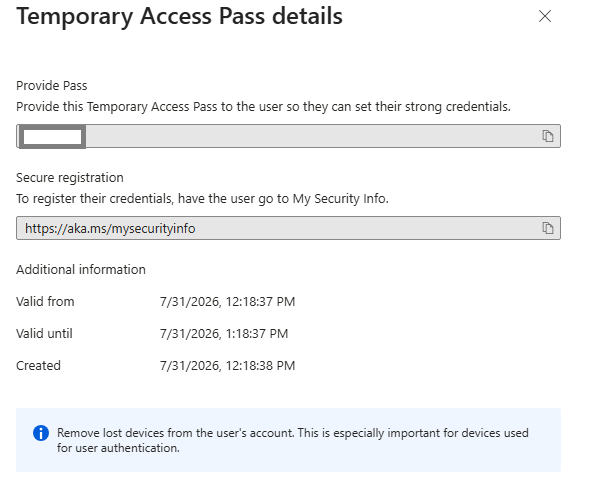
Figure 3. The pass value displays once. Copy it before selecting OK, because there is no way to view it again.
The sign-in screen states this plainly. Below the Temporary Access Pass field, Entra offers “Use your password instead.”
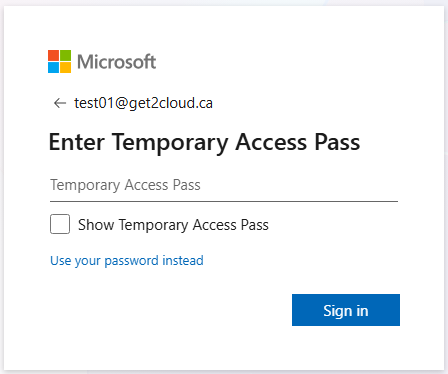
Figure 4. The password is unused and still usable. Entra offers it as an alternative on the same screen that accepts the pass.
Each user can hold exactly one TAP, and creating a new pass overrides the existing one. And the pass value displays once: after you select OK it cannot be retrieved, only replaced. Build the handover around that constraint. In a lab you paste the value into the next browser tab. In an organization the value needs a delivery channel that is not an email to a mailbox the user cannot open yet; the Microsoft Entra Verified ID integration is the pattern Microsoft documents, with identity proofing preceding TAP issuance.
The same issuance works from PowerShell, which is what an onboarding automation would call. PowerShell 7 is the runtime:
winget install --id Microsoft.PowerShell --source winget


Set-ExecutionPolicy -ExecutionPolicy RemoteSigned -Scope CurrentUser

Install-Module Microsoft.Graph.Identity.SignIns

Import-Module Microsoft.Graph.Identity.SignIns

Connect-MgGraph -Scopes "UserAuthenticationMethod.ReadWrite.All"


# Create a single-use TAP with the policy default lifetime

$body = @{ isUsableOnce = $true } | ConvertTo-Json

New-MgUserAuthenticationTemporaryAccessPassMethod -UserId newhire@yourtenant.onmicrosoft.com -BodyParameter $body
The response includes the temporaryAccessPass value. As in the portal, treat it as visible once.
Step 4: First sign-in and passkey registration
The user opens https://mysignins.microsoft.com/security-info and enters their UPN. Because they are in scope for the TAP policy, they get a TAP prompt instead of a password prompt. After sign-in, Security info shows a banner prompting them to add a sign-in method, and from there they register the passkey: a security key, a device passkey, or Microsoft Authenticator. Make this first one portable, meaning a security key or a passkey in Authenticator. Microsoft’s phishing-resistant passwordless deployment guide is explicit that the first credential should be portable and usable to authenticate on other computing devices, because the portable credential is what bootstraps the local ones, Windows Hello for Business among them, on each machine the user touches afterward. The same guide recommends every user end up with at least two methods registered, a portable one plus a local one per device, so a lost or replaced device does not restart onboarding from zero. Signing in to Authenticator with a TAP can register both a passkey and passwordless phone sign-in from the app.
If the one-time TAP path is your policy, the registration window from step 1 applies here. The clock starts at sign-in, and a registration that stalls past it (a user hunting for their security key, a Bluetooth pairing detour) fails with the pass already consumed.
What interrupt mode does to this flow
Interrupt mode is where this flow is most likely to fail, and it does not take an unusual configuration to trigger. In the Get2Cloud lab tenant, with a registration campaign enabled for all users and the SSPR registration requirement set to Yes, a Temporary Access Pass sign-in did not land on Security info. It landed on the interrupt mode of combined registration, the “Let’s keep your account secure” wrapper. Once enabled, the registration campaign remains active until an administrator changes its state or scope.
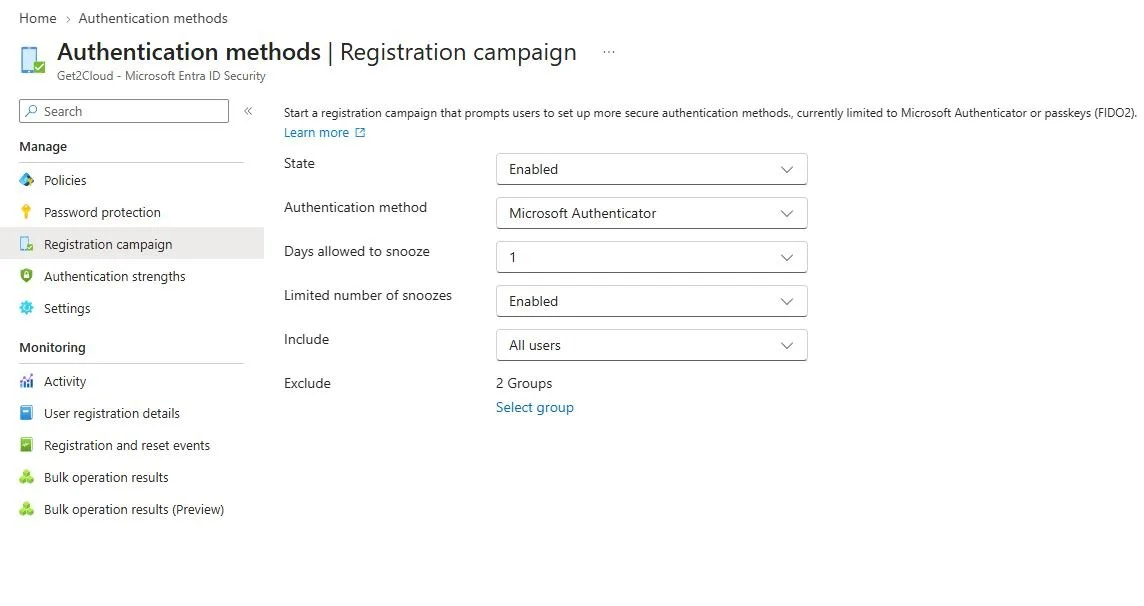
Figure 5. The Microsoft Authenticator registration campaign used in the lab, enabled for all users with two groups excluded.
Interrupt mode does not offer every method the tenant has enabled. Passkey (FIDO2) was enabled tenant-wide and targeted at all users. The methods offered were Microsoft Authenticator, Phone, and Email. A user in that state registers something that will not satisfy the phishing-resistant strength policy in step 6, is told it is now their default sign-in method, and comes back to the service desk later.
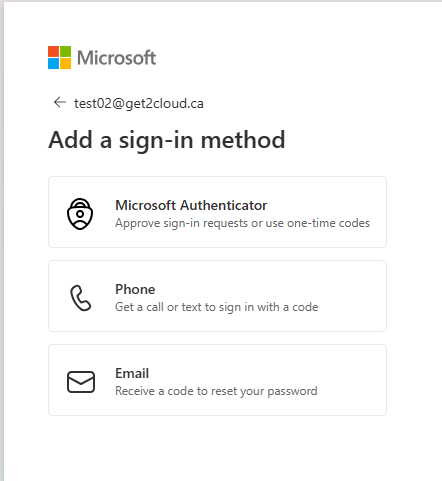
Figure 6. Interrupt-mode registration. Passkey (FIDO2) was enabled and targeted at all users, and it is not on the list.
On an account with nothing registered at all, interrupt mode fails harder. It reports that no authentication methods have been enabled for the account and directs the user to contact their admin. That statement is not true: the methods were enabled and the user was in scope. The flow terminates there, and the only option offered is to skip setup.
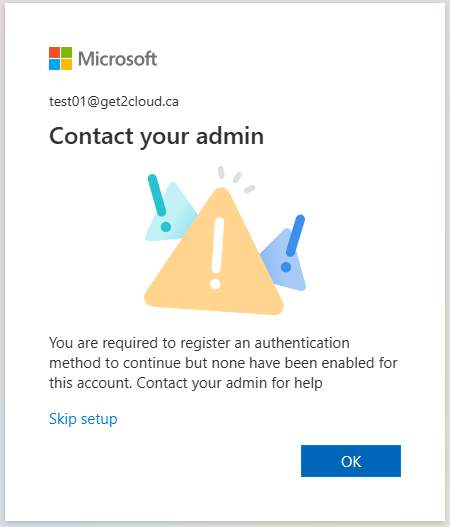
Figure 7. Interrupt mode reporting that no methods are enabled, on an account with passkey enabled and in scope. The user is sent to the admin who already enabled it.
Clearing the interrupt took two changes. Excluding the onboarding group from the registration campaign was not sufficient on its own; the SSPR registration requirement produced the same wrapper afterward. With the onboarding group excluded from the campaign and “Require users to register when signing in” set to No, the pass sign-in landed on Security info directly and the method list included both passkey options. If you scope only one of the two, test before you assume it is fixed.
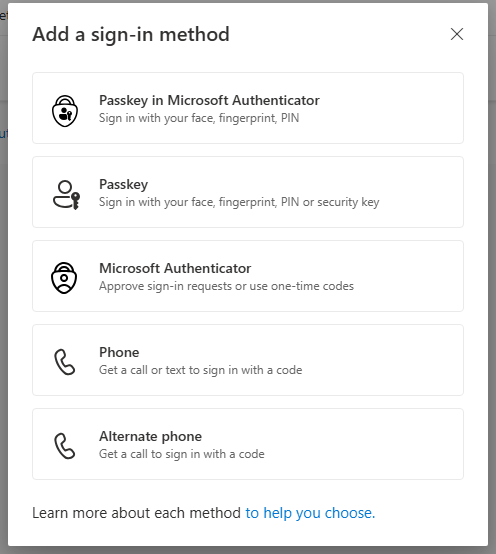
Figure 8. The same tenant after both changes. Passkey in Microsoft Authenticator and Passkey are now offered.
Passkey registration fails inside a private or incognito browser window; the error names it as a possible cause and the pass is spent by then. And on Edge, passkey creation defaults to Microsoft Password Manager and prompts the user to set a separate PIN. Getting the credential into Windows Hello or onto a security key requires selecting “Save another way” during creation. The browser and operating system present the available passkey storage options. Entra passkey profiles can restrict which passkey types and providers are accepted through attestation and key restrictions.
Step 5: Windows device setup and Windows Hello for Business
On a device going through Microsoft Entra join setup, the user can authenticate with the TAP to join the device and register Windows Hello for Business, no password involved. That is the clean day-one path: unbox, join, Windows Hello for Business enrollment, done.
Already-joined devices behave differently. The user must first authenticate with another method, such as a password, smartcard, or FIDO2 security key, before using a TAP to set up Windows Hello for Business. Hybrid-joined devices follow the same rule.
On a supported Microsoft Entra joined Windows device, Web sign-in can let the user sign in to Windows with a TAP. Web sign-in requires internet connectivity and is not supported on hybrid-joined or domain-joined devices. Microsoft positions TAP sign-in for initial setup and recovery rather than everyday use.
Step 6: Lock the flow in with Conditional Access
Two policies turn this from a pleasant onboarding experience into an enforced standard, and both belong to the policy set covered in the Conditional Access baseline. First, protect the registration event itself with a policy targeting the user action Register security information. Microsoft’s reference version of this policy targets all users, excludes guests (a TAP cannot be issued to external guest accounts) and your break-glass accounts, and treats the TAP as the time-limited credential that lets a brand-new user register from any device or location.
One scope change to account for: as of July 6, 2026, the Register security information user action also evaluates during Windows Hello for Business and macOS Platform SSO credential registration, flows that previously did not trigger a registration-targeting Conditional Access policy.
Second, require the destination state: a policy applying the built-in Phishing-resistant MFA authentication strength, which allows Windows Hello for Business or platform credential, FIDO2 security key, and Microsoft Entra certificate-based authentication (multifactor). Single-factor certificate-based authentication does not satisfy it. A TAP does not satisfy it either. The pass appears against the Multifactor authentication strength and nothing stronger, so a user holding only a pass cannot clear this policy. Ship it in report-only mode first. A user caught by the strength requirement without a qualifying method gets redirected into combined registration, and as noted in step 4, interrupt-mode registration cannot register every method. The TAP-first flow in steps 3 and 4 exists so users never hit that wall.
Enforcing this policy is also where the portable-first choice from step 4 gets tested. A user whose only registered method is device-bound, Windows Hello for Business on one laptop, can sign in from that laptop and nowhere else: at any other machine the credential is absent and the password now fails this policy too. The recovery path at that point is a fresh TAP from the service desk. A portable passkey is what keeps a borrowed desk or a dead laptop from becoming a ticket.
Verify it worked
Open the sign-in logs and filter to the test user. The first entry shows Temporary Access Pass as the authentication method. The next interactive sign-in should show the passkey. The user’s Authentication methods page in Entra ID lists the registered passkey and, until it expires, the TAP itself. Users see the same entry in Security info, along with the expiration time, and can delete a pass they no longer need.
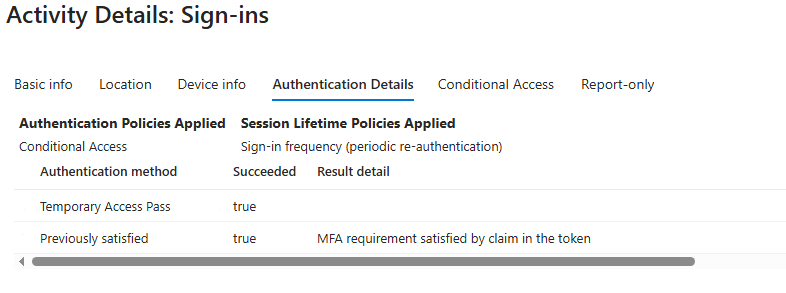
Figure 9. The sign-in that matters. Authentication method: Temporary Access Pass, on an account that has never been given its password.
Policy and pass changes take a few minutes to replicate, so a TAP prompt can lag pass creation and an expired pass can keep prompting briefly; both read as failures and are not. And tokens issued during a TAP sign-in have their maximum lifetime capped at the pass’s expiration at the moment of issuance, but expiry does not retroactively end sessions that already exist. Session lifetime after that point belongs to Conditional Access session controls, so configure a sign-in frequency if TAP-era sessions need to end on schedule.
Before rolling this out to anyone, run the validation: issue a one-time TAP, attempt passkey registration past the five-minute mark and again past ten, and record where it actually fails, what the user sees, and whether the pass is consumed. Two prerequisites apply and the tighter one should bind. The error experience is what your service desk will actually be asked about.
I ran the one-time TAP timeout in the lab. After completing the offered registration inside interrupt mode, continuing past roughly ten minutes from the pass sign-in produced “Sorry, your sign-in timed out. Please sign in again.” above a password field. The elapsed time exceeded both documented windows, so this does not isolate which one fired, and it does not need to. The user is not told the pass expired, is not told which limit they missed, and is offered the one credential this flow exists to avoid issuing. The pass was single-use and shows as consumed on the user’s Authentication methods page afterward, so the service desk issues a new one. Build the runbook against the tighter window and keep the first sign-in clear of a registration interrupt.
The pass is scaffolding. Once the passkey is registered and Windows Hello for Business is enrolled, the TAP expires and nothing password-shaped remains in use on the account, which is the point: the strongest password policy is a user who was never given one. The step 6 policies require phishing-resistant authentication for protected resources; they do not disable the account’s password. The portal configuration above is an afternoon of work. The runbook decision, one-time or multiuse and how the pass value reaches a person who has no mailbox yet, is the part that deserves the meeting.
Questions about which path fits your environment are welcome. Please feel free to reach out.
