
A stolen token is a working key. An attacker who lands one through an adversary-in-the-middle page or a malware grab can replay it from their own machine and walk into Exchange, SharePoint, or Teams as the user, no password prompt, no MFA. A Conditional Access baseline as most people build it does not stop this, because the token already satisfied MFA when it was issued. Token protection is the one CA control that goes after replay directly. It is also the control most likely to be misread as a complete answer to token theft, which it is not. This covers what it binds, the two scoping rules that will block your own users if you get them wrong, and how to stage it in report-only before it touches anyone.
The attack Conditional Access does not stop
Picture the sign-in that already went right. The user authenticated, passed MFA, and Entra ID issued a refresh token. Under a normal CA baseline that is the end of the story: the token is a bearer token, and a bearer token works from anywhere it is presented.
Now picture that token stolen. In an AiTM attack the proxy captures the session token as it passes through. In an infostealer case the token is lifted off disk. Either way the attacker replays it from their own device, and Entra ID sees a valid, already-MFA'd token. Your MFA policy does not fire again. Your risk policy might, if Identity Protection happens to flag the sign-in as unfamiliar, but that is a detection you are hoping for, not a control you are enforcing.
Token protection closes that specific gap. It binds the sign-in session token to the device it was issued on, so a token replayed from a different device is rejected before it grants access. The stolen key still exists. It just no longer fits the lock.
How the binding works
When a supported device registers with Entra ID, it receives a Primary Refresh Token, and that PRT is cryptographically tied to a secret held on the device. On Windows the secret sits in the TPM. When I built this lab, Apple support was not available to me. Microsoft now supports Token Protection for native applications on Apple platforms.
With token protection enforced, Entra ID accepts only session tokens that carry that device binding and rejects plain bearer refresh tokens outright. Because the secret never leaves the hardware, a token copied to another machine cannot reproduce the binding, so the replay fails at the point of token presentation rather than relying on a risk signal to catch it after the fact.
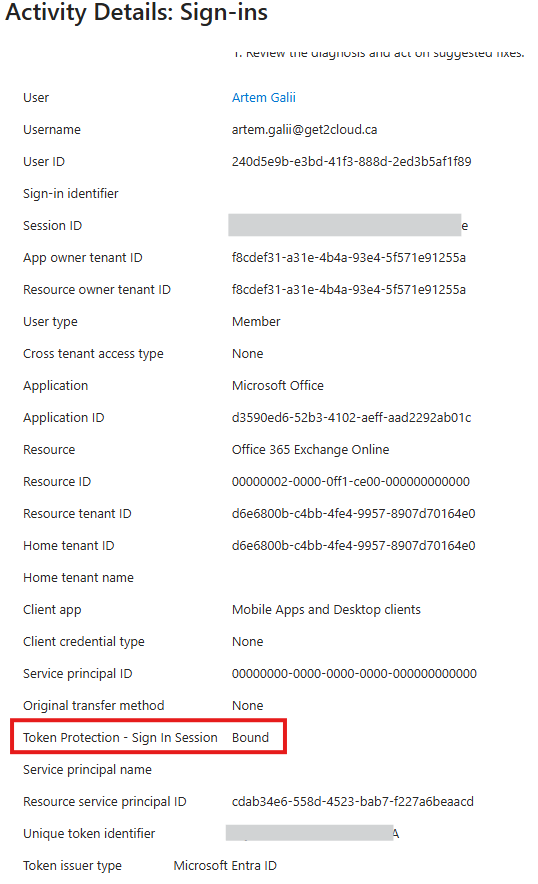
Figure 1. Entra sign-in log showing Token Protection Sign In Session Bound for desktop Outlook against Exchange Online.
What it protects, precisely
Token protection is narrow on purpose, and the boundaries are where deployments go wrong. Three of them matter.
Native and desktop applications remain the main coverage for Token Protection. General Microsoft 365 browser sessions, including Outlook on the web and Teams on the web, are not protected by this policy design. Microsoft now has limited browser support in preview for selected web applications that access Azure Resource Manager on supported Windows and macOS configurations. That does not protect general browser-cookie theft, so Token Protection is still one layer rather than a complete answer to token replay.
When I built and tested this policy, Exchange Online and SharePoint Online were the supported resources available to me in the lab, so those are the two resources included in CA012. Microsoft’s current documentation now also lists Microsoft Teams as a separately supported native resource, with Azure Virtual Desktop and Windows 365 supported on Windows. I have not retested those additional resources in this lab. For a new deployment, check the current support matrix and validate the selected resources in Report-only. Do not use All resources or the Office 365 application group, because the broader scope can cause unintended failures.
Platform support now goes beyond Windows, although my testing for this article was Windows-only. Microsoft’s current platform table lists native application support as generally available on Windows, iOS/iPadOS, and macOS. Apple devices must be MDM-managed and run iOS/iPadOS 16 or later or macOS 14 or later. They also need the Microsoft Enterprise SSO plug-in, or Platform SSO on macOS, so the device registration can support token binding. I did not validate the Apple scenarios in this lab, so check the current deployment guide and run a Report-only pilot before enforcing the policy.
Apple support still has an important limitation. Apple’s native Mail and Calendar apps do not support Token Protection, and users of those apps will be blocked from protected resources when the policy is enforced. If people in your environment depend on Apple Mail or Calendar, move them to a supported application such as Outlook before enforcement. Test this during the pilot and communicate the change in advance.
| Aspect | Windows | Apple (macOS, iOS/iPadOS) |
|---|---|---|
| Status |
Native applications: generally available. Supported Azure Resource Manager web applications: preview. |
Native applications: generally available. Supported Azure Resource Manager web applications on macOS: preview. Browser applications on iOS/iPadOS: not supported. |
| OS minimum | Windows 10 or later; Windows Server 2019 or later when hybrid joined. | macOS 14.0 or later; iOS/iPadOS 16.0 or later. |
| Device registration | Microsoft Entra joined, hybrid joined, or registered. Windows Server must be hybrid joined. | MDM-managed devices only. |
| Prerequisite | Device-bound PRT and a supported application using Windows broker integration. | Microsoft Enterprise SSO plug-in, or Platform SSO on macOS. Keys use Secure Enclave where available, with Data Protection Keychain used as a fallback on supported Macs. |
| Known blocker | Unsupported device-registration types and unsupported clients can be blocked. Some unsupported registration types return status code 1003. | Apple Mail and Calendar do not support Token Protection and are blocked from protected resources under an enforced policy. Unmanaged devices are not supported. |
| Licensing | Microsoft Entra ID P1 | |
| Resources | Exchange Online, SharePoint Online, and Microsoft Teams. Azure Virtual Desktop and Windows 365 are also supported. Include Windows Cloud Login when Windows App is deployed. Select the resources individually rather than using the Office 365 application group. | Exchange Online, SharePoint Online, and Microsoft Teams. Select the supported resources individually rather than using the Office 365 application group. |
| Client scope | Native and desktop applications. Browser support is limited to selected web applications accessing Azure Resource Manager and remains in preview. | Native applications. On macOS, browser support is limited to selected web applications accessing Azure Resource Manager and remains in preview. Browser support is not available on iOS/iPadOS. |
The two scoping rules that lock people out
This policy has two settings that look like reasonable choices and are in fact the block risk.
The first is the client apps condition. For the Windows policy I built in this lab, select Mobile apps and desktop clients only. Do not select Browser. General Microsoft 365 browser sessions are not supported by this policy, and selecting Browser can block MSAL.js applications such as Teams on the web. Microsoft now has limited browser support in preview for selected web applications that access Azure Resource Manager, but that is a separate scenario and should be tested in its own policy.
The second is resource selection. In the policy I built in this lab, I selected Exchange Online and SharePoint Online individually because those were the supported resources available to me at the time. Microsoft’s current documentation also lists Microsoft Teams. On Windows, Azure Virtual Desktop and Windows 365 are supported too, along with Windows Cloud Login when Windows App is used. I have not retested those additional resources in this lab. For a new deployment, select only the supported resources you need and select them individually. Do not use All resources or the Office 365 application group here, because the broader scope can block unsupported sign-ins.
Both rules point the same direction. Token protection wants a tight scope, and every instinct toward "cover everything" widens the blast radius onto clients the control was never meant to gate.
Deploying it without breaking sign-in
The sequence is report-only, log analysis, pilot, enforce. None of the steps are optional, and the log analysis matters here because the failures are not always caused by an attacker replaying a token. Some come from devices you manage that use a registration method Token Protection does not support, and those sign-ins can be blocked when the policy is enforced.
Start with the policy in report-only. Here is the CA012 shape I built in my lab, with the same break-glass exclusion group that carries across the rest of the baseline:
| Setting | Value |
|---|---|
| Policy name | CA012-Windows-Require-TokenProtection |
| Users | All users, excluding SG-BreakGlass-Exclude |
| Target resources | Exchange Online, SharePoint Online |
| Device platforms | Windows |
| Client apps | Mobile apps and desktop clients only |
| Session control | Require token protection for sign-in sessions |
| State | Report-only (before enforcement) |
With the policy evaluating but not enforcing, read the sign-in logs. Under Basic Info, the Token Protection - Sign In Session field shows whether an evaluated request was Bound or Unbound. Bound means that request used a bound protocol, but a sign-in can contain several requests and all of them must be bound to satisfy the policy. Unbound means the request did not use a bound protocol, and the status code explains why. In my lab, browser requests outside the Mobile apps and desktop clients scope displayed None. That was an observation from this policy configuration, not a third documented binding result.
The distinction matters when you go looking for evidence that the policy is working. In my lab, a browser sign-in to Outlook on the web against Exchange Online returned None rather than an Unbound status code. Because Browser was excluded from the client apps condition, this showed that the request was outside my Windows native-client policy and was not evaluated for Token Protection. Microsoft’s separate preview support for selected web applications accessing Azure Resource Manager is a different policy scenario.
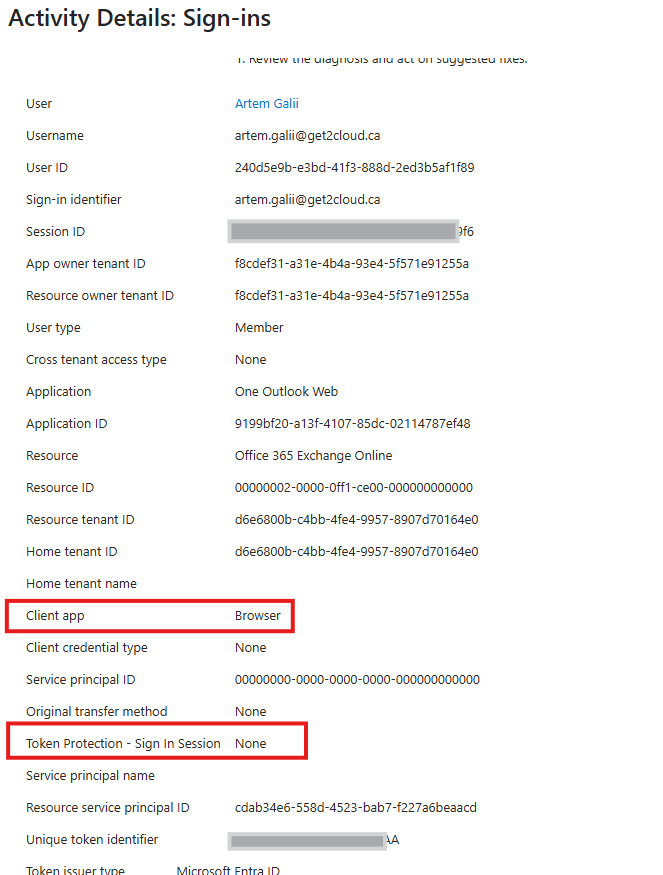
Figure 2. Entra sign-in log showing Token Protection Sign In Session None for a browser session against Exchange Online.
The status codes are worth knowing before you enforce, because more than one of them describes a device you own rather than an attack:
| Code | Meaning |
|---|---|
| 1002 | Unbound due to the lack of an Entra ID device state on the request. |
| 1003 | Device state does not satisfy the Token Protection requirement, or the device was not registered using fresh sign-in credentials. This can affect Entra-joined AVD session hosts, Entra-joined Windows 365 Cloud PCs, Entra-joined Power Automate hosted machine groups, bulk-enrolled devices, Autopilot self-deploying devices, and Azure VMs using the Entra login extension. |
| 1005 | Unbound for other unspecified reasons. |
| 1006 | Unbound because the OS version is unsupported. |
| 1008 | Unbound because the client is not integrated with the platform broker, such as Windows Account Manager (WAM). |
The one that catches people is 1003. It means the device state does not meet the Token Protection requirement, or the device was not registered using fresh sign-in credentials. Microsoft lists several affected registration methods, including Entra-joined AVD session hosts, Entra-joined Windows 365 Cloud PCs, Entra-joined Power Automate hosted machine groups, bulk-enrolled devices, Autopilot self-deploying devices, and Azure VMs using the Entra login extension. The resource may be supported while that registration method is not. Microsoft documents device filters as a way to exclude these deployment categories during onboarding, but an excluded device will not receive Token Protection. Keep any exclusion narrow, document why it exists, and use Report-only logs to identify the affected devices before enforcement.
Include the non-interactive sign-in logs in this analysis, not just the interactive ones. Token Protection results can appear in either, so Microsoft recommends reviewing both before enforcement. The KQL query below checks the non-interactive logs and parses TokenProtectionStatusDetails to find Unbound requests by user, status code, and application:
AADNonInteractiveUserSignInLogs
| where TimeGenerated > ago(14d)
| where TokenProtectionStatusDetails != ""
| extend parsedBindingDetails = parse_json(TokenProtectionStatusDetails)
| extend bindingStatus = tostring(parsedBindingDetails["signInSessionStatus"])
| extend bindingStatusCode = tostring(parsedBindingDetails["signInSessionStatusCode"])
| where bindingStatus == "unbound"
| summarize count() by UserPrincipalName, bindingStatusCode, AppDisplayName
What it does not solve
The main boundary is still the browser. The Windows native-client policy in this article does not protect browser cookies or general Microsoft 365 browser sessions, so an attacker who steals a session cookie can still replay it in a browser. Microsoft now has Token Protection in preview for selected web applications that access Azure Resource Manager on supported Windows and macOS configurations, but that coverage is narrow. Token Protection should still be treated as one layer against token replay, not a complete answer to token theft.
There is also a client-compatibility issue to plan for. Office perpetual clients are not supported. Microsoft also lists PowerShell modules that access SharePoint, the Power Query extension for Excel when users are not on Current Channel, and Visual Studio Code extensions that access Exchange or SharePoint as unsupported protected-token flows. These clients can be blocked when the policy is enforced. This matters for scripts or tools that authenticate as a user; app-only workload identity authentication is a separate case. Check the current supported-application list and test your administrative tools in Report-only before enforcement.
Token Protection also does not close the platform-bypass gap by itself. Native application support is limited to Windows and Apple platforms, while the browser preview covers only selected web applications that access Azure Resource Manager. A sign-in that appears to come from an unsupported or unknown platform may fall outside the policy. Microsoft therefore recommends separate Conditional Access policies to block unknown platforms and require compliant devices on supported platforms. Token Protection should not be deployed as a standalone control.
Verdict
For this article, Windows is still the deployment I can stand behind because that is what I tested. Token Protection requires Entra ID P1, and Windows native-application support is generally available, but the policy should still start in Report-only and move through a pilot before enforcement. Apple native-application support is now generally available too, although I have not retested it in this lab. If you deploy it on Apple devices, validate the MDM and SSO requirements and move affected users away from Apple Mail and Calendar first. Browser protection remains limited to preview support for selected applications that access Azure Resource Manager, not general Microsoft 365 browser sessions. Token Protection is useful, but it remains one layer against token replay.
Questions about which path fits your environment are welcome. Please feel free to reach out.
