
If you're running the same Intune checks every month, clicking through the portal is the long way around. Device inventory. Compliance gaps. Stale machines nobody cleaned up. All of it takes longer than it should.
These 7 scripts handle the repeating work. They use the Microsoft Graph PowerShell SDK, they are read-only by default, and none of them require a scripting background. If you can paste and run, you can use these today.
Getting Started with Microsoft Graph PowerShell
Run all of these commands in PowerShell 7. Microsoft recommends PowerShell 7 or later for the Microsoft Graph PowerShell SDK. Windows PowerShell 5.1 is still supported, but PowerShell 7 usually provides a cleaner and more consistent experience because it does not require the same additional prerequisites. If you do not have PowerShell 7 installed yet, open your existing PowerShell as administrator and run:
winget install --id Microsoft.PowerShell --source winget
Once PowerShell 7 is installed, open it as administrator and work through these steps in order.
First, make sure your execution policy allows local scripts to run:
Set-ExecutionPolicy -ExecutionPolicy RemoteSigned -Scope CurrentUser
Install the full Microsoft Graph PowerShell SDK:
Install-Module Microsoft.Graph -Scope CurrentUser -Repository PSGallery
Then import the Graph authentication module. The -Verbose flag shows you exactly what is loading, which is useful the first time:
Import-Module Microsoft.Graph.Authentication
Then connect with the scopes the scripts need. This opens an authenticated session against Microsoft Graph and requests the permissions required to read device and compliance data:
Connect-MgGraph -Scopes "DeviceManagementManagedDevices.Read.All",
"DeviceManagementConfiguration.Read.All","Directory.Read.All"
After running the Connect-MgGraph command, an authentication window will appear. Select your admin account or enter your credentials when prompted. This is the same Entra ID account you use to access the Microsoft Intune or Azure portal. Once authenticated, the session is active.
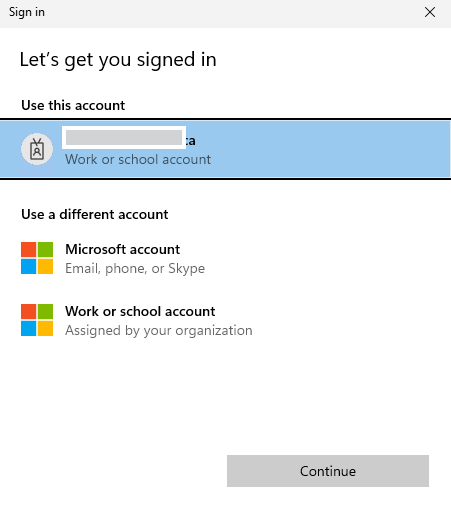
Figure 1. Microsoft Graph PowerShell authentication prompt after running Connect-MgGraph.
Once authenticated, PowerShell will display a "Welcome to Microsoft Graph!" confirmation along with your connection details. This message appears every time you connect. If you prefer a cleaner output, you can suppress it by adding -NoWelcome to the connect command:
Connect-MgGraph -Scopes "DeviceManagementManagedDevices.Read.All","DeviceManagementConfiguration.Read.All","Directory.Read.All" -NoWelcome

Figure 2. Successful Microsoft Graph connection confirmed in PowerShell 7.
Script 1: Export All Intune Devices to CSV
Why this matters
A clean device inventory is the starting point for almost every other admin task. Pulling it manually from the portal is slow and the export options are limited. This script gives you a full CSV with the fields that actually matter for day-to-day management.
What it does
Exports all managed devices with device name, OS, OS version, compliance state, assigned user, enrollment date, and last sync time.
# Retrieve all managed devices
$devices = Get-MgDeviceManagementManagedDevice -All

# Report folder and CSV path
$reportFolder = "C:\Reports"
$csvPath = Join-Path $reportFolder "IntuneDeviceInventory.csv"

# Create Reports folder if it does not exist
if (-not (Test-Path -Path $reportFolder)) {
    New-Item -Path $reportFolder -ItemType Directory -Force | Out-Null
}

# Select and format the fields you care about
$devices | Select-Object `
    @{Name="DeviceName";Expression={'"' + $_.DeviceName + '"'}}, `
    OperatingSystem, `
    OsVersion, `
    ComplianceState, `
    UserDisplayName, `
    @{Name="EnrolledDateTime";Expression={($_.EnrolledDateTime).ToString("yyyy-MM-dd HH:mm:ss")}}, `
    @{Name="LastSyncDateTime";Expression={($_.LastSyncDateTime).ToString("yyyy-MM-dd HH:mm:ss")}} |
Export-Csv -Path $csvPath -NoTypeInformation -Encoding UTF8

Write-Host "Exported device inventory to $csvPath" -ForegroundColor Green
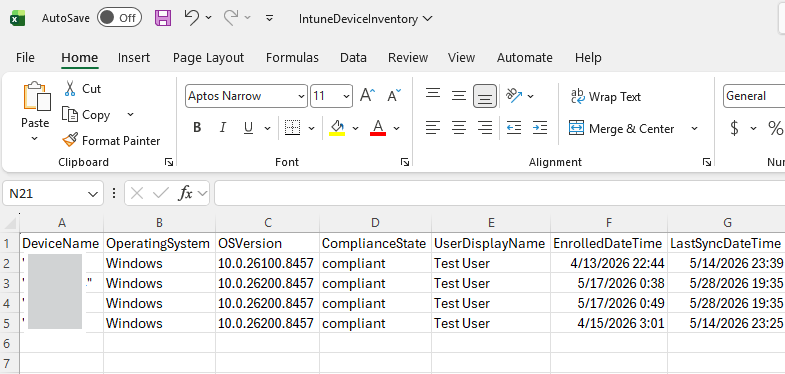
Figure 3. Script 1 output device inventory exported to CSV and opened in Excel.
Script 2: List Compliance Policies and Compliant Devices
Why this matters
When a compliance gap shows up in a report, the first question is always which policy covers which devices. This script answers that without requiring you to click into each policy individually.
What it does
Loops through every compliance policy in your tenant, lists the compliant devices assigned to each one, and shows the last reported timestamp.
$policies = Get-MgDeviceManagementDeviceCompliancePolicy -All

Write-Host "Compliant devices by compliance policy:" -ForegroundColor Yellow

foreach ($policy in $policies) {
    Write-Host "`nPolicy: $($policy.DisplayName)" -ForegroundColor Cyan

    try {
        $statuses = Get-MgDeviceManagementDeviceCompliancePolicyDeviceStatus `
            -DeviceCompliancePolicyId $policy.Id `
            -All
    }
    catch {
        Write-Warning "Could not fetch status for policy: $($policy.DisplayName)"
        continue
    }

    $compliantDevices = @($statuses | Where-Object { $_.Status -eq "compliant" })

    if ($compliantDevices.Count -eq 0) {
        Write-Host "`tNo compliant devices"
    }
    else {
        foreach ($device in $compliantDevices) {
            Write-Host "`t$($device.DeviceDisplayName) (last reported: $($device.LastReportedDateTime))"
        }
    }
}
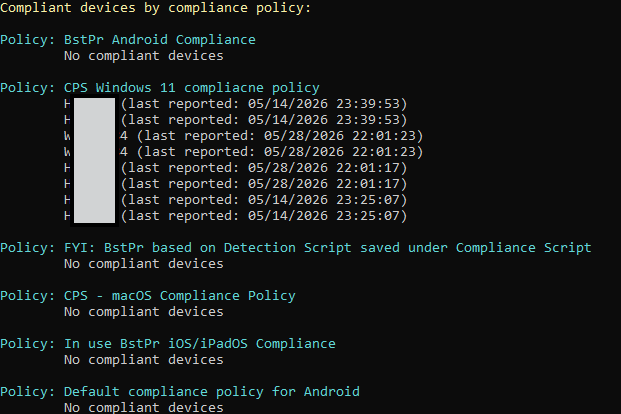
Figure 4. Script 2 output: compliant devices by compliance policy.
Variant: Filter for noncompliant devices
To flip this report and see noncompliant devices instead, change the Where-Object filter on the $statuses line.
Replace this line:
$compliantDevices = @($statuses | Where-Object { $_.Status -eq "compliant" })
With this:
$noncompliantDevices = @($statuses | Where-Object { $_.Status -eq "noncompliant" })
Then update the remaining variable references from $compliantDevices to $noncompliantDevices and update the Write-Host labels so the output clearly says "noncompliant devices" instead of "compliant devices."
$policies = Get-MgDeviceManagementDeviceCompliancePolicy -All

Write-Host "Noncompliant devices by compliance policy:" -ForegroundColor Yellow

foreach ($policy in $policies) {
    Write-Host "`nPolicy: $($policy.DisplayName)" -ForegroundColor Cyan

    try {
        $statuses = Get-MgDeviceManagementDeviceCompliancePolicyDeviceStatus `
            -DeviceCompliancePolicyId $policy.Id `
            -All
    }
    catch {
        Write-Warning "Could not fetch status for policy: $($policy.DisplayName)"
        continue
    }

    $noncompliantDevices = @($statuses | Where-Object { $_.Status -eq "noncompliant" })

    if ($noncompliantDevices.Count -eq 0) {
        Write-Host "`tNo noncompliant devices"
    }
    else {
        foreach ($device in $noncompliantDevices) {
            Write-Host "`t$($device.DeviceDisplayName) (last reported: $($device.LastReportedDateTime))"
        }
    }
}
Script 3: Check BitLocker Status Across Windows Devices
Why this matters
Encryption status is one of the first things that comes up in a security audit. This gives you a quick export you can hand over without digging through the portal device by device.
What it does
Pulls BitLocker encryption status for all Windows devices along with the assigned user, compliance state, and Entra ID device ID.
$bitLockerStatus = Get-MgDeviceManagementManagedDevice -All |
    Where-Object { $_.OperatingSystem -like "Windows*" } |
    Select-Object DeviceName, IsEncrypted, UserDisplayName, ComplianceState, AzureADDeviceId

$reportFolder = "C:\Reports"
$csvPath = Join-Path $reportFolder "BitLockerStatusReport.csv"

# Create Reports folder if it does not exist
if (-not (Test-Path -Path $reportFolder)) {
    New-Item -Path $reportFolder -ItemType Directory -Force | Out-Null
}

$bitLockerStatus | Export-Csv -Path $csvPath -NoTypeInformation -Encoding UTF8

Write-Host "BitLocker status report exported to $csvPath" -ForegroundColor Green
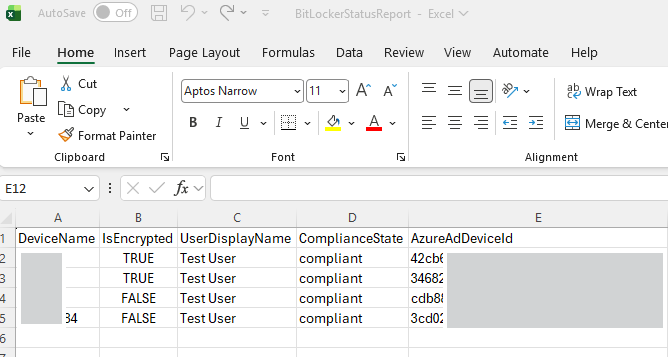
Figure 5. Script 3 output: showing device encryption status exported to CSV and opened in Excel.
Script 4: Find Unencrypted Windows Devices
Why this matters
Script 3 gives you the full picture. This one narrows it down to the machines that need attention. Useful when you want a shorter list to act on rather than a full inventory.
What it does
Filters for Windows devices where IsEncrypted is either False or blank/null, then exports the results to a CSV file. The null check matters because some devices may not report a value instead of explicitly reporting False. A missing value means the encryption status is unknown, not confirmed unencrypted.
$unencryptedDevices = Get-MgDeviceManagementManagedDevice -All |
    Where-Object {
        $_.OperatingSystem -like "Windows*" -and
        ($_.IsEncrypted -ne $true -or $_.IsEncrypted -eq $null)
    } |
    Select-Object DeviceName, IsEncrypted, UserDisplayName, ComplianceState, AzureADDeviceId

$reportFolder = "C:\Reports"
$csvPath = Join-Path $reportFolder "UnencryptedWindowsDevices.csv"

# Create Reports folder if it does not exist
if (-not (Test-Path -Path $reportFolder)) {
    New-Item -Path $reportFolder -ItemType Directory -Force | Out-Null
}

$unencryptedDevices | Export-Csv -Path $csvPath -NoTypeInformation -Encoding UTF8

Write-Host "Unencrypted device report exported to $csvPath" -ForegroundColor Green
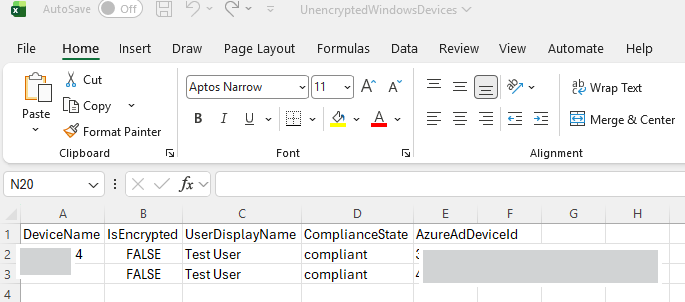
Figure 6. Script 4 output: unencrypted Windows devices exported to CSV and opened in Excel.
Script 5: Identify Stale Devices (No Sign-In for 30+ Days)
Why this matters
Stale devices can pile up quickly in environments with employee turnover, device replacements, or rebuilds. They can skew compliance numbers and create noise in reports. This is the script I run before a quarterly device cleanup.
What it does
Queries Entra ID for devices with no sign-in activity in the past 30 days, including devices that have never signed in. The report also includes related Intune details where available, such as assigned user, UPN, compliance state, last Intune sync date, OS version, and Windows release. The results are sorted by the last sign-in date and exported to a CSV file.
Note
The Windows release value is derived from the OS build number. When new Windows 11 releases become available, update the script’s Windows release mapping so the report shows the correct version, such as 24H2, 25H2, or newer.
ApproximateLastSignInDateTime is an approximate Entra ID device activity signal and may not reflect real-time device usage. Use it for cleanup review and stale-device analysis, not for real-time status checks.
$thresholdDate = (Get-Date).AddDays(-30)
$reportFolder = "C:\Reports"
$csvPath = Join-Path $reportFolder "Stale_Devices_30days.csv"

# Create Reports folder if it does not exist
if (-not (Test-Path -Path $reportFolder)) {
    New-Item -Path $reportFolder -ItemType Directory -Force | Out-Null
}

function Get-WindowsRelease {
    param (
        [string]$OsVersion
    )

    switch -Wildcard ($OsVersion) {
        "10.0.22000*" { "Windows 11 21H2" }
        "10.0.22621*" { "Windows 11 22H2" }
        "10.0.22631*" { "Windows 11 23H2" }
        "10.0.26100*" { "Windows 11 24H2" }
        "10.0.26200*" { "Windows 11 25H2" }
        default        { "Unknown / Other" }
    }
}

Write-Host "Fetching Entra ID devices..." -ForegroundColor Cyan

$entraDevices = Get-MgDevice -All -Property @(
    "Id",
    "DeviceId",
    "DisplayName",
    "OperatingSystem",
    "OperatingSystemVersion",
    "ApproximateLastSignInDateTime",
    "AccountEnabled"
)

Write-Host "Fetching Intune managed devices..." -ForegroundColor Cyan

$intuneDevices = Get-MgDeviceManagementManagedDevice -All

# Build lookup table using Azure AD Device ID
$intuneLookup = @{}

foreach ($device in $intuneDevices) {
    if ($device.AzureADDeviceId) {
        $intuneLookup[$device.AzureADDeviceId.ToLower()] = $device
    }
}

$staleDevices = foreach ($device in $entraDevices) {

    $lastSignIn = $device.ApproximateLastSignInDateTime

    if (-not $lastSignIn -or $lastSignIn -lt $thresholdDate) {

        $intuneDevice = $null

        if ($device.DeviceId) {
            $intuneDevice = $intuneLookup[$device.DeviceId.ToLower()]
        }

        $osVersion = if ($intuneDevice.OsVersion) {
            $intuneDevice.OsVersion
        }
        else {
            $device.OperatingSystemVersion
        }

        [PSCustomObject]@{
            DeviceName                    = $device.DisplayName
            UserDisplayName               = $intuneDevice.UserDisplayName
            UserPrincipalName             = $intuneDevice.UserPrincipalName
            OperatingSystem               = $device.OperatingSystem
            OSVersion                     = $osVersion
            WindowsRelease                = Get-WindowsRelease -OsVersion $osVersion
            ComplianceState               = $intuneDevice.ComplianceState
            ApproximateLastSignInDateTime = $lastSignIn
            LastIntuneSyncDateTime        = $intuneDevice.LastSyncDateTime
            EnrolledDateTime              = $intuneDevice.EnrolledDateTime
            AccountEnabled                = $device.AccountEnabled
            EntraObjectId                 = $device.Id
            AzureADDeviceId               = $device.DeviceId
        }
    }
}

$staleDevices |
    Sort-Object ApproximateLastSignInDateTime |
    Format-Table -AutoSize

$staleDevices |
    Sort-Object ApproximateLastSignInDateTime |
    Export-Csv -Path $csvPath -NoTypeInformation -Encoding UTF8

Write-Host "Stale device report exported to $csvPath" -ForegroundColor Green

Figure 7. Script 5 output showing stale devices with no sign-in activity for 30+ days exported to CSV and opened in Excel
Script 6: Detect Devices with Low Free Disk Space
Why this matters
Low disk space is one of the more reliable early indicators that a Windows Update may fail. By the time the user notices something is wrong, the update may have already stalled. This script helps you get ahead of it.
What it does
Scans all Windows devices for free disk space at or below 20 GB and exports a report with device name, user, free space, total space, last sync time, OS version, and model. Adjust the 20 GB threshold to match your environment.
$devices = Get-MgDeviceManagementManagedDevice -All
$lowDiskDevices = @()

foreach ($device in $devices) {
    if (
        $device.OperatingSystem -like "Windows*" -and
        $device.FreeStorageSpaceInBytes -and
        $device.FreeStorageSpaceInBytes -le 20GB
    ) {
        $lowDiskDevices += [PSCustomObject]@{
            DeviceName      = $device.DeviceName
            UserDisplayName = $device.UserDisplayName
            FreeSpaceGB     = [math]::Round(
                $device.FreeStorageSpaceInBytes / 1GB, 2
            )
            TotalSpaceGB    = if ($device.TotalStorageSpaceInBytes) {
                [math]::Round($device.TotalStorageSpaceInBytes / 1GB, 2)
            } else {
                "N/A"
            }
            LastSync        = $device.LastSyncDateTime
            OS              = $device.OperatingSystem
            OSVersion       = $device.OSVersion
            Model           = $device.Model
        }
    }
}

$reportFolder = "C:\Reports"
$csvPath = Join-Path $reportFolder "Devices_LowDiskSpace.csv"

# Create Reports folder if it does not exist
if (-not (Test-Path -Path $reportFolder)) {
    New-Item -Path $reportFolder -ItemType Directory -Force | Out-Null
}

$lowDiskDevices |
    Export-Csv -Path $csvPath -NoTypeInformation -Encoding UTF8

Write-Host "Low disk space report exported to $csvPath" -ForegroundColor Green
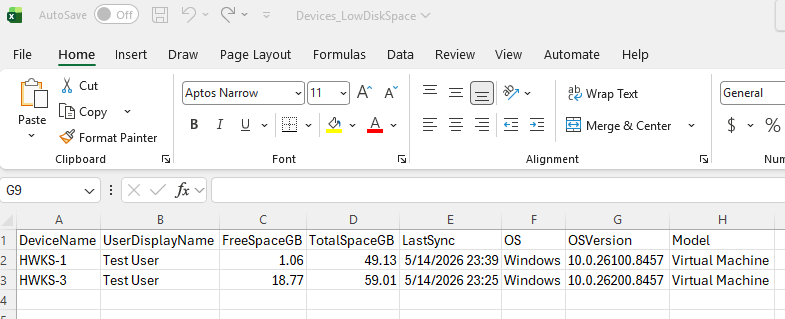
Figure 8. Script 6 output: low disk space devices exported to CSV and opened in Excel.
Script 7: Identify Devices Running Outdated Windows Versions
Why this matters
Devices that have not reached your current Windows build baseline can fall behind your feature update standard and create inconsistent reporting across the environment. If the older build is no longer supported, those devices may also miss required security updates. In a Windows Autopatch environment, this report can help you spot lagging devices early. In a manual patching environment, it gives you a clear starting point.
What it does
Compares each managed Windows device against a target OS version you define. Any device below that version is flagged and exported to a CSV file. In this example, the target baseline is 10.0.26100.8514, but you should update this value every month, or whenever your organization changes its Windows build baseline.
# Set your baseline Windows build
# Example: 10.0.26100.8514 = Windows 11 24H2 Release Preview build used as the current target baseline
# Update this value every month, or whenever your organization changes its Windows build baseline
$targetVersion = [version]"10.0.26100.8514"

$reportFolder = "C:\Reports"
$csvPath = Join-Path $reportFolder "Devices_OlderOS.csv"

# Create Reports folder if it does not exist
if (-not (Test-Path -Path $reportFolder)) {
    New-Item -Path $reportFolder -ItemType Directory -Force | Out-Null
}

Write-Host "Fetching Intune managed devices..." -ForegroundColor Cyan

$allDevices = Get-MgDeviceManagementManagedDevice -All

$olderDevices = $allDevices |
    Where-Object {
        $_.OperatingSystem -like "Windows*" -and
        -not [string]::IsNullOrWhiteSpace($_.OsVersion)
    } |
    Where-Object {
        try {
            [version]$_.OsVersion -lt $targetVersion
        }
        catch {
            # Skip devices with malformed OsVersion strings
            $false
        }
    } |
    Select-Object `
        DeviceName,
        OperatingSystem,
        OsVersion,
        UserDisplayName,
        UserPrincipalName,
        ComplianceState,
        LastSyncDateTime,
        Model

$olderDevices |
    Sort-Object OsVersion |
    Format-Table -AutoSize

$olderDevices |
    Sort-Object OsVersion |
    Export-Csv -Path $csvPath -NoTypeInformation -Encoding UTF8

Write-Host "Found $($olderDevices.Count) Windows device(s) below target version $targetVersion." -ForegroundColor Green
Write-Host "Windows OS version report exported to $csvPath" -ForegroundColor Green
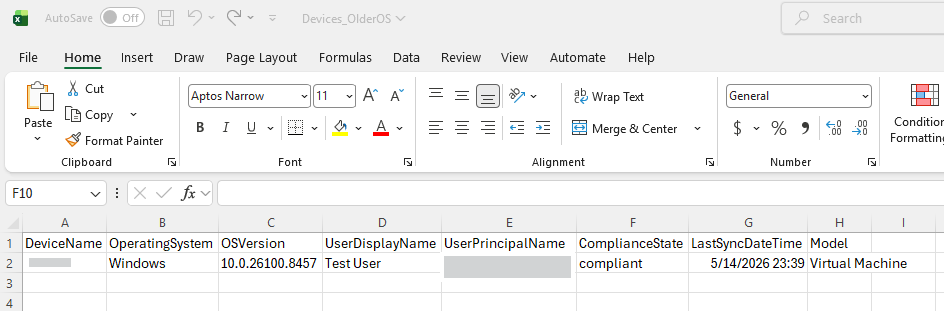
Figure 9. Script 7 output: showing devices below target build 10.0.26100.8514 exported to CSV and opened in Excel.
