
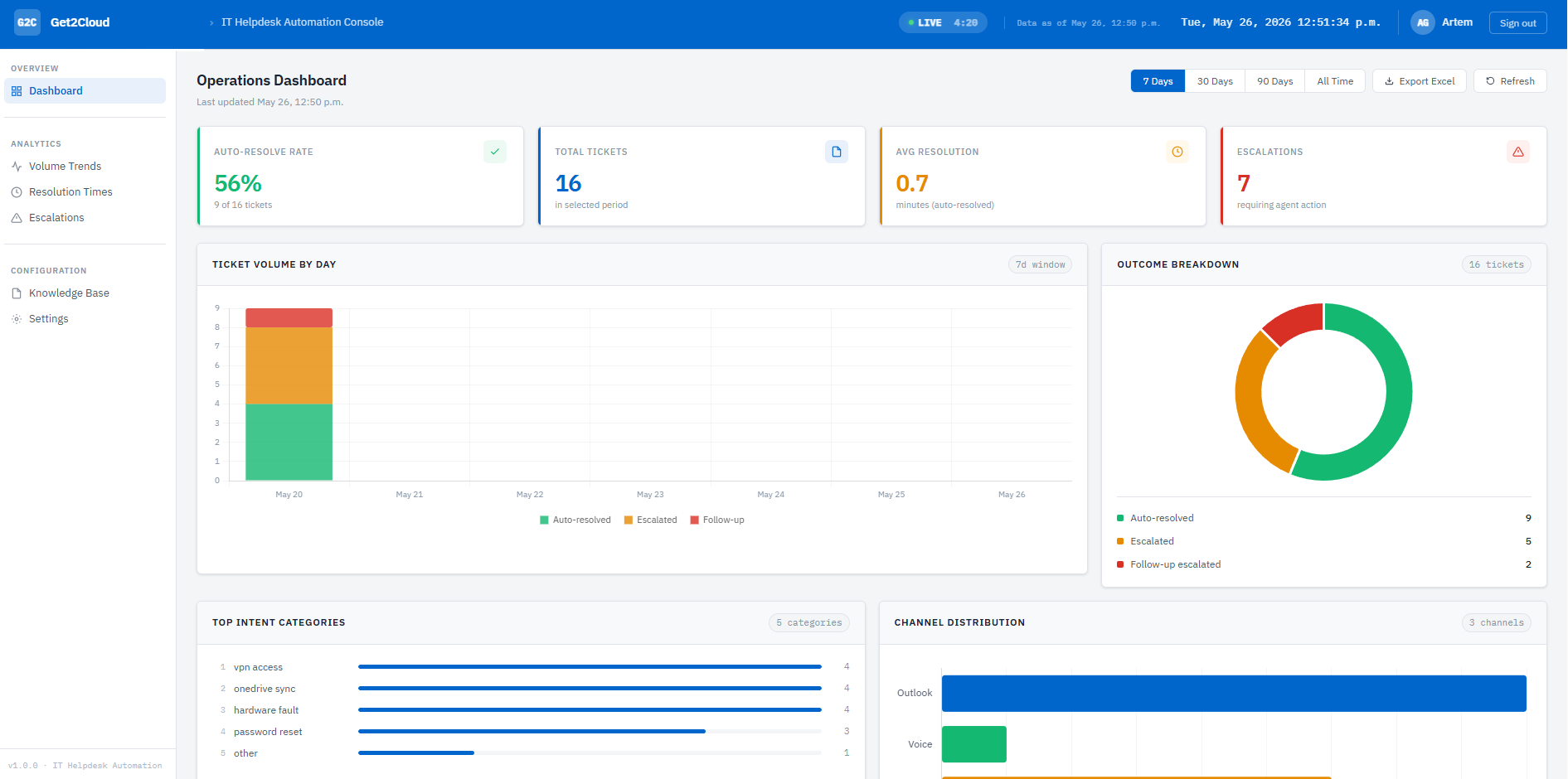
Figure 1. AI Help Desk Assistant Operations Dashboard.
SharePoint page, an old email someone forwarded six times, a Word document nobody had touched in two years. Someone still had to read the ticket, find the right answer, and type the reply. Every time.
So I built a workflow to handle it.
What I built
An IT help desk pipeline running on Microsoft 365, n8n and ElevenLabs. It handles three intake channels: Outlook, Microsoft Teams, and voice, using the same SharePoint knowledge base across all three. Every reply that reaches an employee was written and approved by the IT team in advance. The AI decides which resolution fits or whether escalation is needed. SharePoint delivers the exact fix steps text.
n8n is the orchestration layer for Outlook and Teams. It receives the trigger, normalizes the payload, classifies the ticket via Azure OpenAI, queries SharePoint, routes to auto-resolve or escalation, sends replies, posts Teams cards, and writes to the execution log.
The voice channel works differently. ElevenLabs runs the conversation and calls out to n8n via six dedicated webhooks when it needs to take action: verify the caller, fetch the current KB intents, look up a resolution, send instructions by email, escalate, or log the outcome. n8n handles the execution. ElevenLabs drives the call. The full pipeline runs across ten dedicated n8n workflows: two for email and Teams intake, two for shared infrastructure, and six for the voice channel.
Three third-party components handle the parts Microsoft does not cover natively: n8n for workflow orchestration, ElevenLabs for the voice agent, and Twilio for the phone number. All three require a paid subscription. Power Automate is also required for Teams card posting and is included in most Microsoft 365 business plans, but confirm your plan covers webhook-triggered flows before building.
Classification runs on GPT-5.4-mini deployed via Azure OpenAI through Microsoft Foundry.
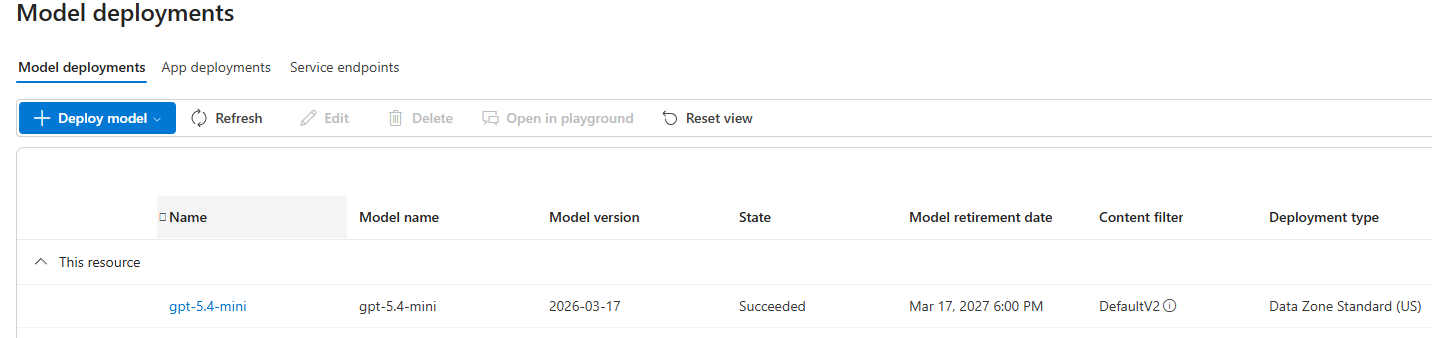
Figure 2. AI Model Deployed in Microsoft Foundry.
The voice agent runs on Claude Sonnet 4.6 inside ElevenLabs.
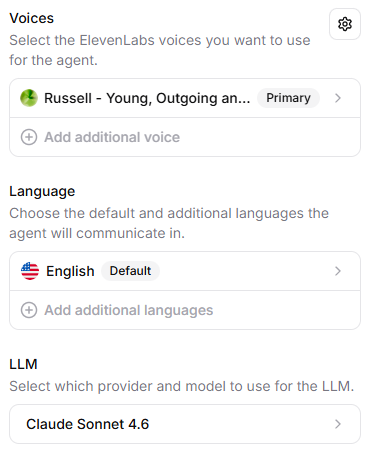
Figure 3. ElevenLabs Voice Agent Settings.
The knowledge base
Everything starts here. Your IT team adds a row to a SharePoint list for each issue category: resolution steps, estimated fix time, and an optional KB article link. Anyone on the team can edit it like a spreadsheet.
The intent list is fetched dynamically from SharePoint at runtime. Add a new row and all three channels pick it up on the next request. No workflow changes, no prompt edits, no redeployment.
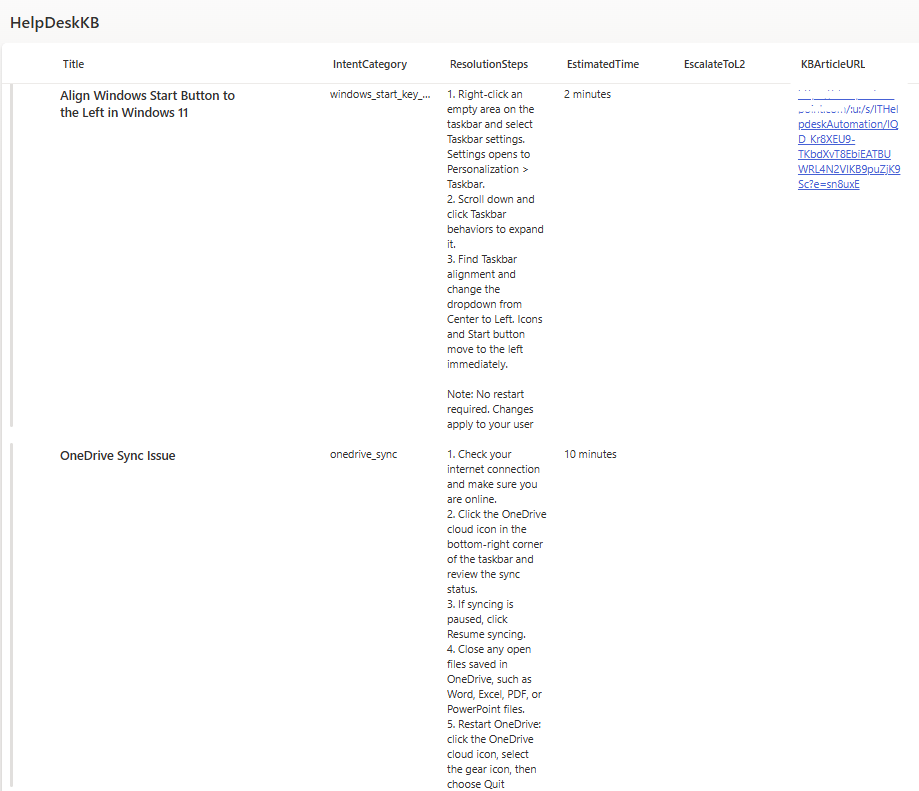
Figure 4. SharePoint HelpDeskKB List.
Three intake channels, one pipeline
Outlook:
A Microsoft Graph Change Notification fires the moment a new email hits the shared help desk mailbox. The workflow responds immediately with HTTP 200 to prevent Microsoft retry behavior, fetches the KB list, classifies the ticket, and routes it to auto-resolve or escalation. Emails sent by the shared mailbox itself are filtered out to prevent reply loops.
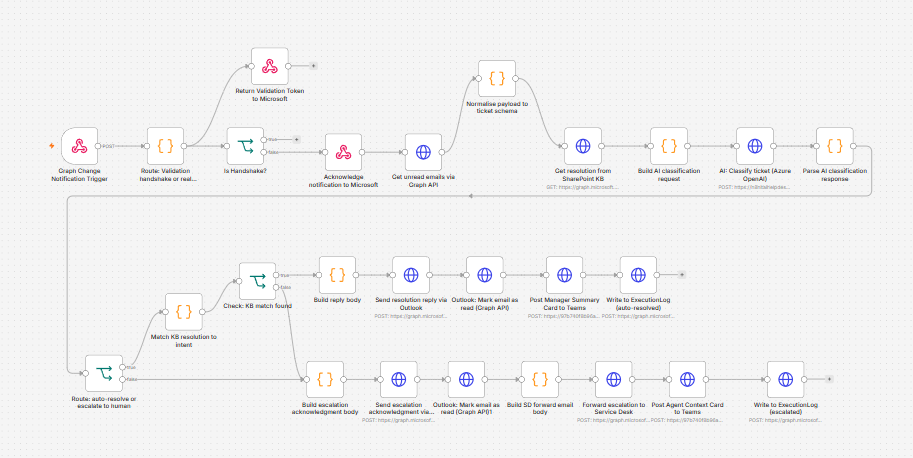
Figure 5. Outlook channel n8n workflow.
One important detail: Microsoft Graph subscriptions expire and must be renewed. Outlook message subscriptions using basic notifications can last up to 10,080 minutes, which is just under seven days. This build renews the subscription every two days with a PATCH call, leaving enough time to recover if one renewal attempt fails. That keeps the Outlook trigger active without routine manual renewal.

Figure 6. Graph Subscription renewal n8n workflow.
Microsoft Teams:
Employees post IT requests to a designated Service Desk channel. A scheduled workflow runs every 30 minutes, reads the last-processed timestamp from a SharePoint list, and pulls messages created after that point. After processing, it updates the timestamp. That single-row SharePoint list is how duplicate processing is prevented across poll cycles. For each message, the workflow resolves the sender's Azure AD object ID to their real user principal name via the Microsoft Graph API before classification runs.
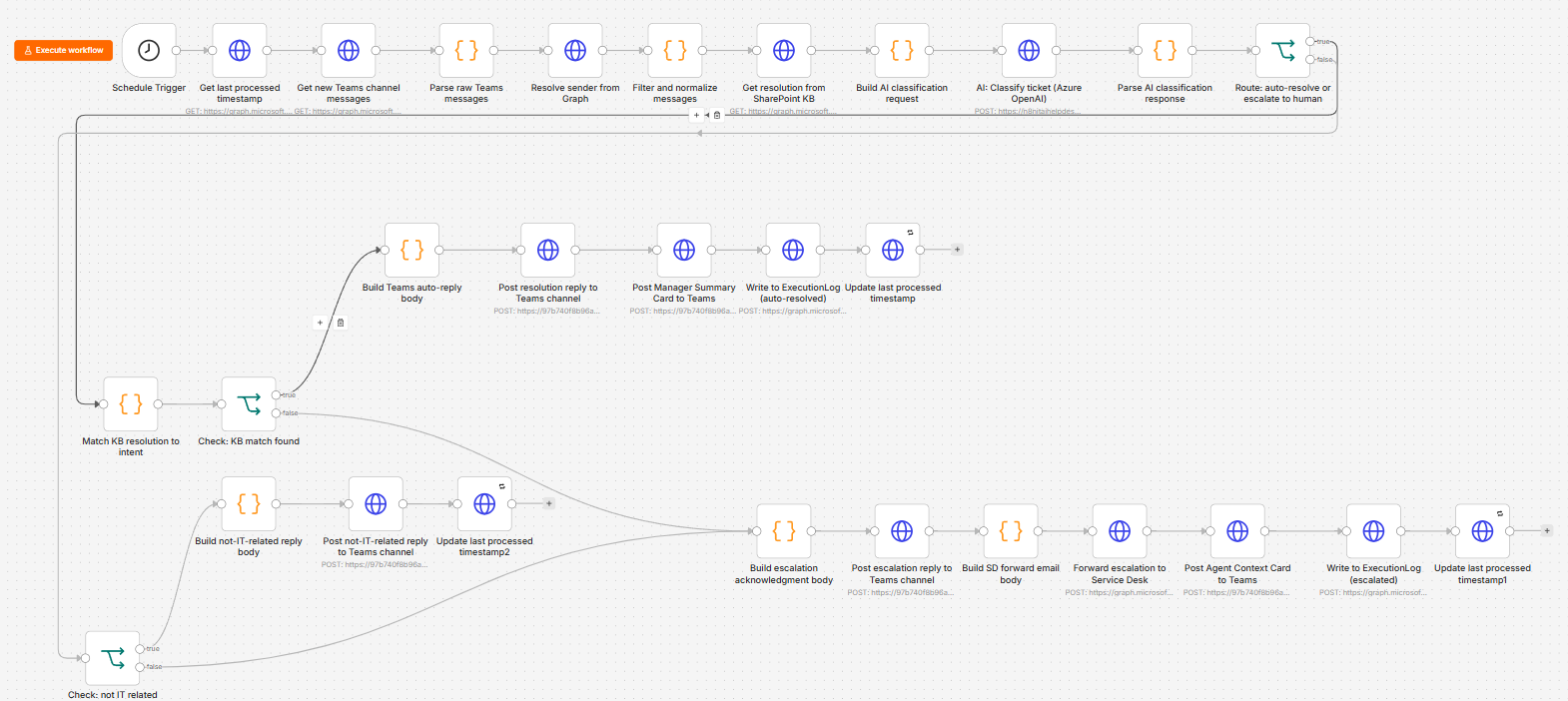
Figure 7. Microsoft Teams n8n workflow.
Voice:
An employee calls a dedicated number handled by an ElevenLabs AI voice agent. ElevenLabs connects to n8n via six dedicated webhook workflows that handle all M365 work on behalf of the agent: identity verification, KB intent fetching, resolution lookup, email delivery, escalation, and outcome logging. The voice channel uses the same SharePoint knowledge base, execution log, and Graph API App Registration as the Outlook and Teams channels.
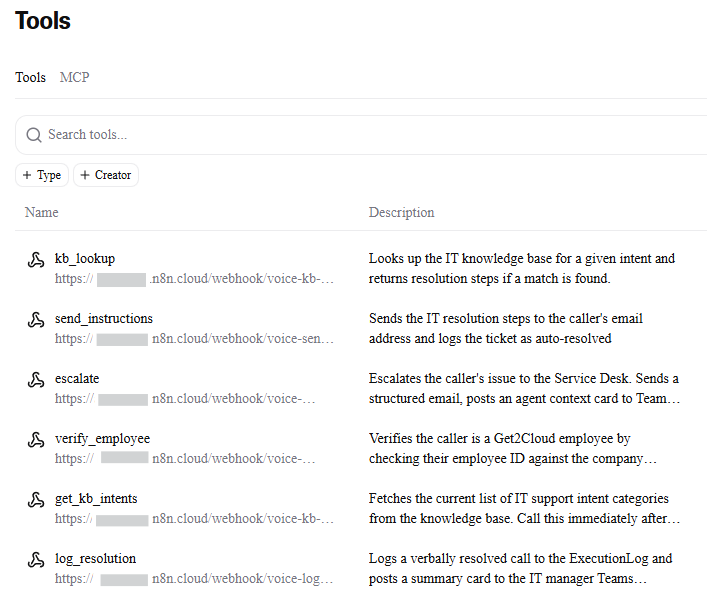
Figure 8. ElevenLabs voice agent tools panel with the six configured tools
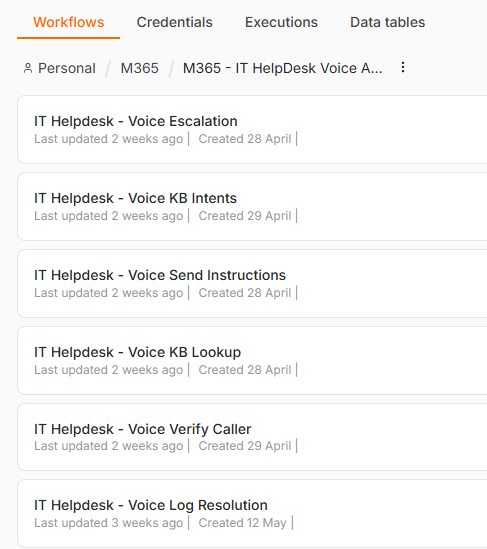
Figure 9. ElevenLabs voice agent n8n workflows.
The voice channel: directory check first.
Before the agent discusses the issue, it asks for the employee’s ID and looks up the matching Entra ID account through Microsoft Graph. The workflow confirms that the account exists and is enabled. This is an account-status check; it does not prove that the caller is the employee associated with that account.
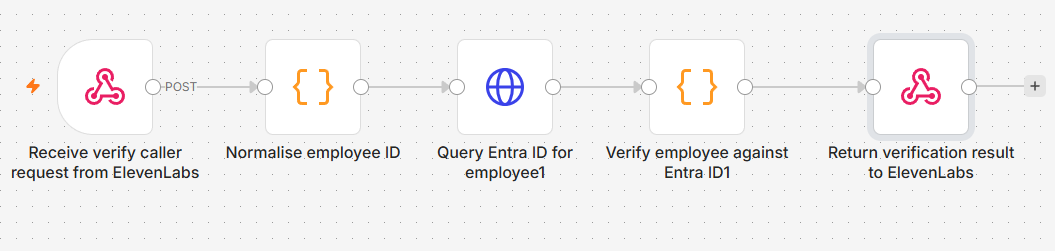
Figure 10. Entra ID account-status check n8n workflow.
If the workflow cannot find a matching enabled account, the caller is directed to their manager or HR. Because the base workflow does not authenticate the caller, it should be limited to general, pre-approved troubleshooting guidance. Add a separate verification step before exposing account-specific information or performing an action.
If employees are unlikely to remember a numeric employee ID, there is an SMS-based alternative that works with the existing stack. The caller provides their name or work email, n8n retrieves their mobile number from Entra ID via the Microsoft Graph API, Twilio sends a one-time code by SMS, and the agent asks the caller to read it back. No new platforms required, just mobile numbers populated on Entra ID user profiles and an updated verification workflow in n8n.
Note: This approach requires User.Read.All on the App Registration, which is a broader Graph permission scope than the base build grants. It is not included in the default configuration and should be assessed against your organisation's permission policies before implementing.
After the directory check, the agent fetches the current support categories from SharePoint and listens to the issue. It either walks through resolution steps verbally, emails them to the caller's work address, or escalates to the Service Desk with a callback number. Everything gets logged to SharePoint either way.
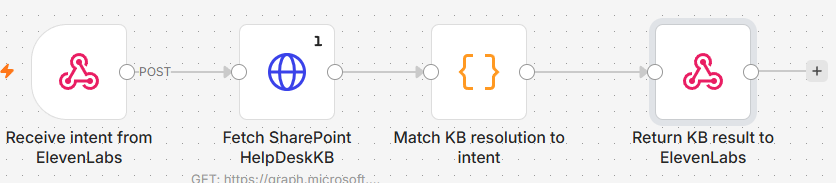
Figure 11. Voice channel KB lookup n8n workflow.

Figure 12. Voice channel send Instructions n8n workflow.

Figure 13. Voice channel escalation n8n workflow
How the AI works
I kept the AI role as small as possible.
It reads the incoming message and matches it to one of the intent categories in the SharePoint KB. It returns a confidence score alongside the category. If that score is above 0.75 and a KB match exists, n8n sends the pre-approved resolution to a user and posts an auto-resolved summary card to the Service Desk manager's Teams channel.
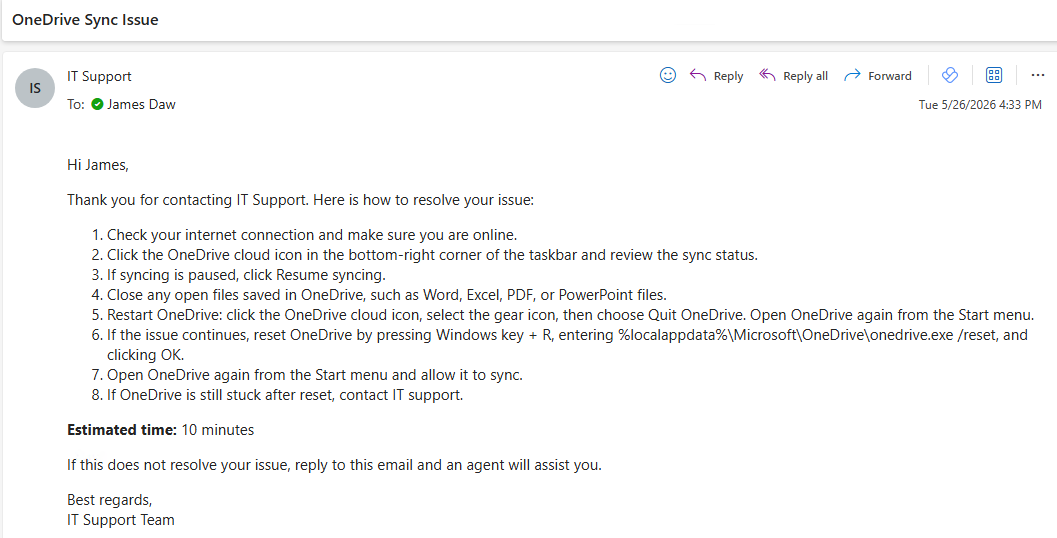
Figure 14. Auto-resolve email sent to a user with the resolution steps
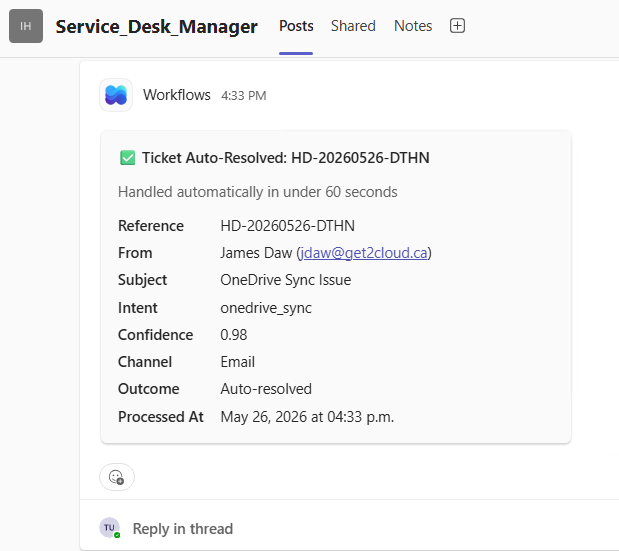
Figure 15. Teams auto-resolved card posted in Service Desk
Manager channel.
If that score is below 0.75, the user does not receive an automated resolution. Instead, the issue is escalated to a human agent. The service desk receives an email and an escalation card in its Teams channel, while the user receives an email with the escalation information.
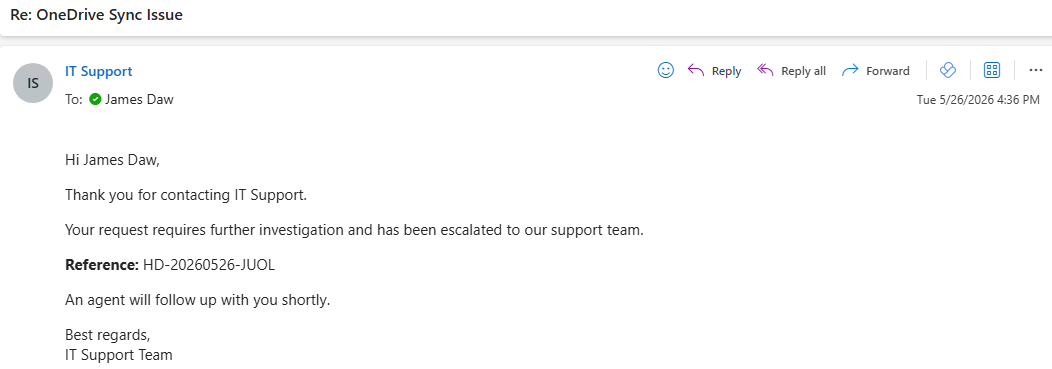
Figure 16. Escalation reference email sent to a user
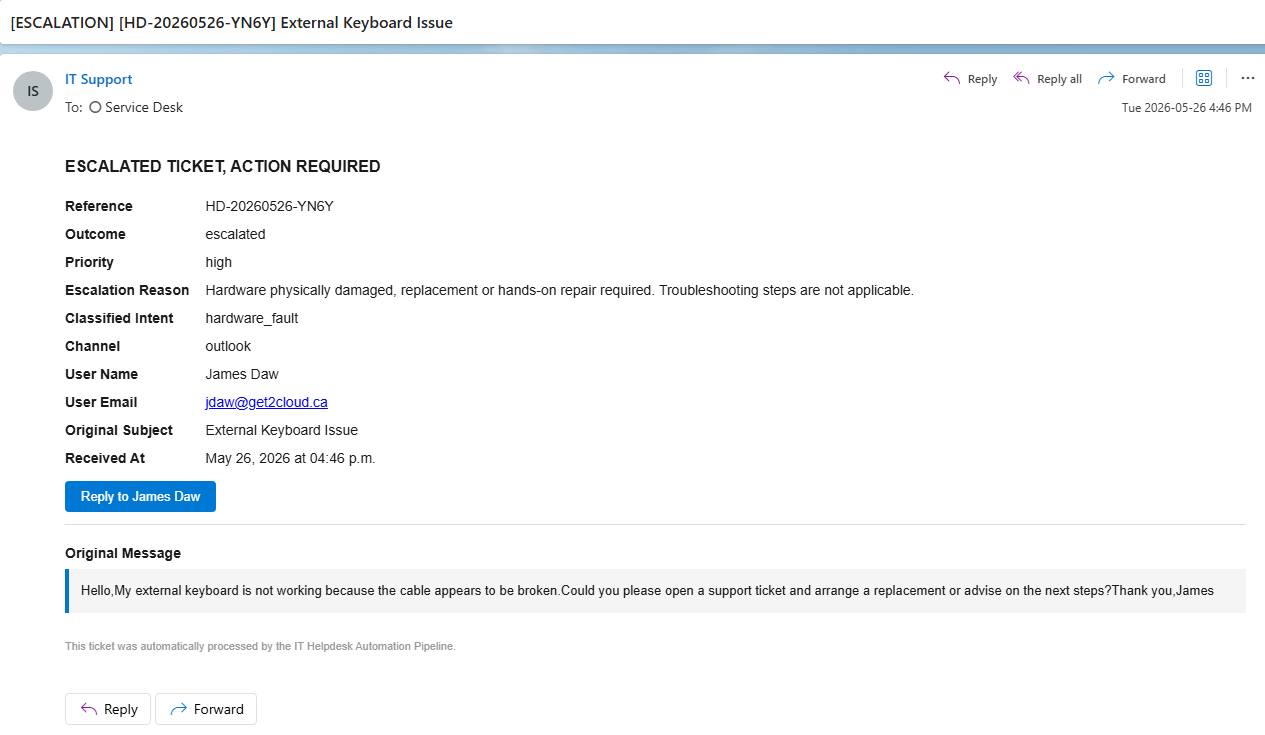
Figure 17. Escalation email sent to Service Desk team.
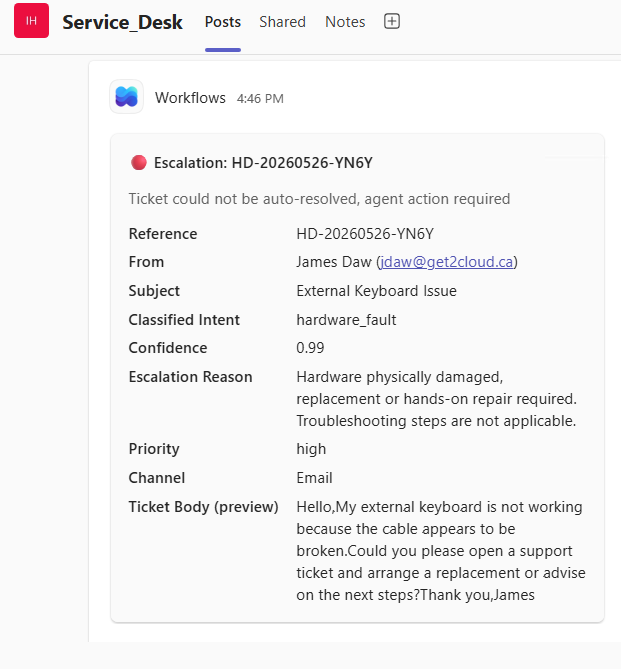
Figure 18. Escalation card posted in Service Desk Teams channel.
Follow-up detection works as a separate check. The system scans the message body and subject line for signals that the employee is responding to a prior automated reply: phrases like "still not working" or a subject line starting with Re:. When those signals are present, the ticket escalates immediately. The escalation reason is prefixed with FOLLOW-UP so the agent knows what they are dealing with before opening it.
One thing to be explicit about: the AI does not write the reply. Once a category is confirmed, the workflow does a deterministic lookup in SharePoint and sends the stored resolution text exactly as written. Not a generated paraphrase. Not a summary. The exact text your IT team approved.
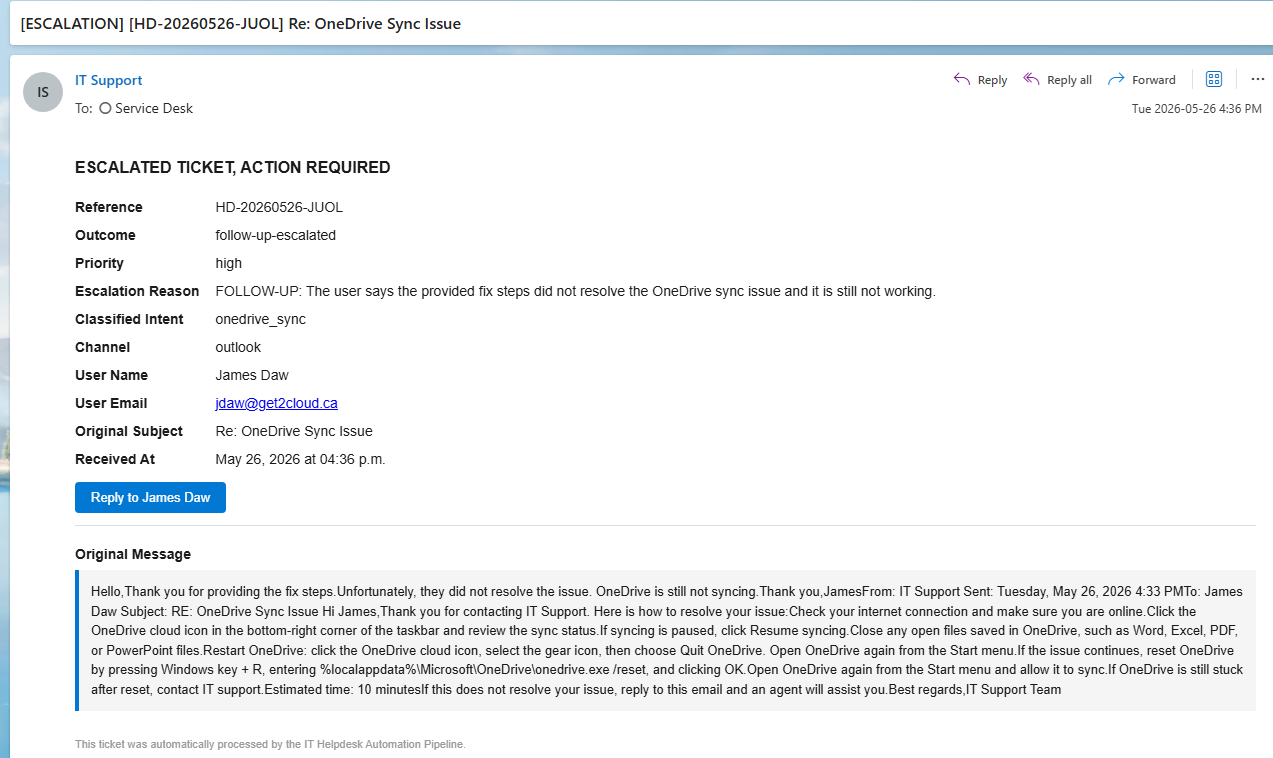
Figure 19. Follow-up escalation email sent to Service Desk team.
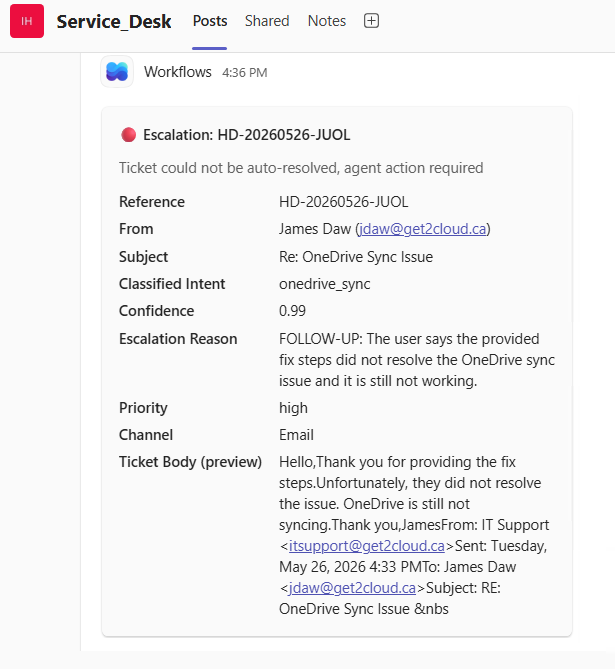
Figure 20. Follow-up escalation card posted in Service Desk Teams channel.
Teams notifications and Power Automate flows
Three Microsoft Teams groups keep employees, agents, and managers in separate channels.
• Service_Desk_Tickets: where employees post IT requests and receive replies
• Service_Desk: where agents receive escalation cards
• Service_Desk_Manager: where managers see auto-resolve summaries and error alerts
Teams card posting runs through Power Automate webhook flows. One flow per channel, three flows total. This is the current approach for posting adaptive cards to Teams channels from external systems. Office 365 Connectors were retired in May 2026 and are no longer a viable option.
At the time I built this, Power Automate webhook flows could not post directly to private Teams channels. That limitation is why I used three separate teams to keep each audience in its own lane. Microsoft later added private-channel support, which was available through Power Automate by April 2026.
Cards are color coded. Blue for auto-resolved. Orange for escalation. Red for system errors.
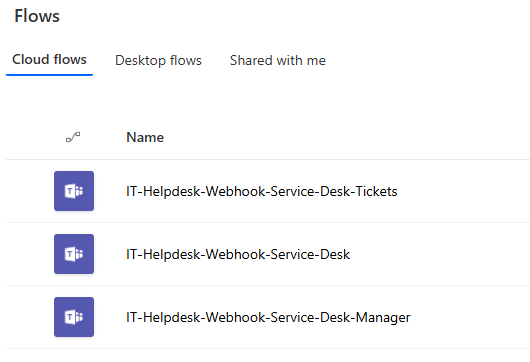
Figure 21. Power Automate webhook flows for Teams card posting.
When something goes wrong
Every workflow in the pipeline has a dedicated Error Handler workflow assigned to it. When any node fails, n8n triggers the Error Handler automatically. It posts a red alert card to the Service Desk Manager Teams channel with the workflow name, the failed node, the error message, and the execution ID. The manager knows about the failure immediately, with enough context to act on it.
The error is also written to the same SharePoint execution log as normal ticket outcomes, so failures show up in the dashboard alongside volume and resolution metrics.
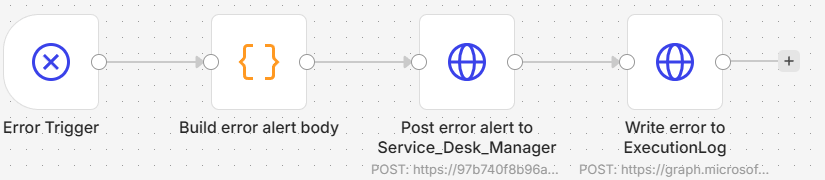
Figure 22. n8n Error Handler workflow.
What I intentionally did not automate
This system does not reset passwords. It does not modify user accounts. It does not grant SharePoint permissions. It does not change group memberships. It does not generate new employee-facing answers. It does not process external senders.
That was deliberate. The goal was not to build an autonomous admin agent. The goal was to reduce repetitive L1 work while keeping human control over anything that touches access, identity, security, or production configuration.
The safest version of this system is classification plus approved knowledge retrieval. Not unrestricted action.
The security model
A few things that matter if you are showing this to anyone with a security or compliance role.
Authentication runs through an Azure App Registration using OAuth 2.0 client credentials flow. All credentials are stored in n8n's encrypted credential store, not hardcoded in any workflow. Graph API permissions are scoped to the minimum required for each function.
The shared help desk mailbox has RequireSenderAuthenticationEnabled set to Yes in Exchange Online. This blocks all unauthenticated external senders at the transport layer before any message reaches the inbox. The Outlook workflow adds a second check: it verifies the sender domain before processing. The Teams workflow goes further and verifies both the sender domain and the Teams tenant ID. Anything that does not match is dropped before classification and receives no reply. In this lab build, rejected requests are not written to the operational ticket log. For production, I would add a separate security log containing only the timestamp, channel, and rejection reason, not the message body.
SharePoint, Exchange Online, and Entra ID remain the source systems for the workflow. n8n connects to them through Microsoft Graph and processes the data requested by each workflow, within the permissions granted to the app registration. Depending on how n8n is hosted and configured, ticket content and metadata may also be retained in its execution history.
For Outlook and Teams tickets, the message text is sent to Azure OpenAI for classification. The voice channel has a wider service boundary because calls route through Twilio and the conversation runs in ElevenLabs. Review the hosting location, execution-data retention settings, and data-processing terms for these services if your organization has strict privacy or residency requirements.
The operations dashboard
Every outcome is logged to a SharePoint list with a timestamp, channel, intent, confidence score, and resolution time. A browser-based dashboard reads that log in real time via the Microsoft Graph API and shows auto-resolve rates, escalation patterns and daily ticket volume.
The dashboard is a single HTML file hosted on Azure Static Web Apps and deployed automatically through GitHub Actions whenever code is pushed to the main branch. There is no server to maintain.
In this lab, the same app registration handles both the n8n automation and dashboard sign-in. For production, I would separate them: one app registration for the app-only automation and another for interactive dashboard authentication. This keeps the application permissions and sign-in configuration separate and reduces the impact if either application is compromised.
Access is gated through Entra ID. Assignment Required is set to Yes on the Enterprise Application. Anyone without an authorized account hits an access denied screen at the Microsoft login. They never reach the dashboard.
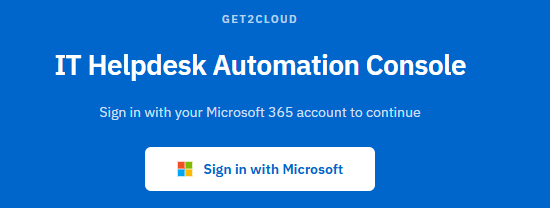
Figure 23. IT Helpdesk Automation Console sign-in screen gated by Entra ID
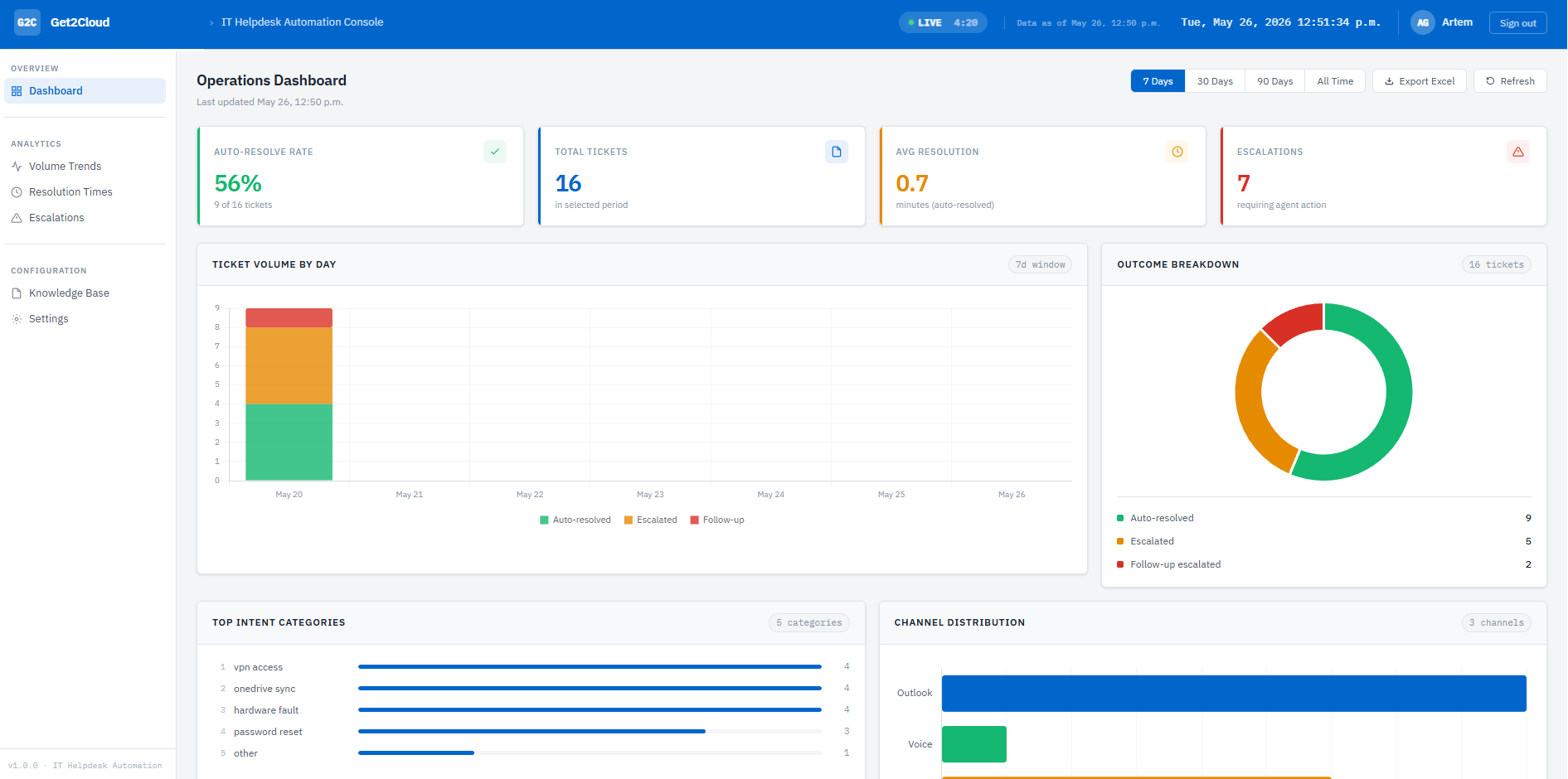
Figure 24. IT Helpdesk Automation Console operations dashboard.

Figure 25. IT Helpdesk Automation Console ticket log.
What can be adjusted
The system is built to adapt. Nothing is hardcoded beyond what you configure.
The knowledge base drives everything. Add, edit, or remove KB articles in SharePoint and the change reflects across all three channels on the next request.
The confidence threshold is adjustable. Raising it routes more tickets to human agents. Lowering it increases the auto-resolve rate. The right setting depends on your KB coverage and how risk-tolerant your team is with automated replies.
The AI model is swappable. Classification currently runs on GPT-5.4-mini via Azure OpenAI. Higher volume deployments can switch to GPT-5.4-nano for lower cost per call. The voice, tone, and persona of the AI voice agent can be switched from the ElevenLabs settings panel without touching any workflow.
Each intake channel can be enabled or disabled independently. The voice channel in particular can be built and tested after the email and Teams channels are confirmed working.
Escalation routing can connect directly to the existing ticketing system. Instead of forwarding to a shared mailbox, the escalation path can create records in ServiceNow, Jira Service Management, Freshservice, or Zendesk via API, with all classified fields pre-populated.
If you have questions about the build or want to talk through how something similar could work for your site, feel free to reach out.
Watch: AI Help Desk on n8n and Microsoft 365 - Full Demo
